Jumio Watch
Overview
Jumio Watch is an ability for Jumio to alert Customers proactively when new risk knowledge is obtained from Jumio's Identity Graph, through connections and behavior, which now classifies a previously approved transaction as a Fraud risk.
Use Cases
- New Risk: Genuine user turning risky later, especially First Party Frauds
- Undetected Risk: If Jumio did not detect a risk with the user in the past
Key Benefits
- Take proactive measures to protect against existing users who have turned risky in your ecosystem
- Stop fraud loss, even if the bad actor made it through onboarding
Alerts under Jumio Watch will be triggered only against those transactions with ID Verification that were successfully verified, either with status “Passed” or “Warning”.
Jumio Watch triggers an alert for such transactions, if
| Trigger Type | Trigger | Alert Reason |
|---|---|---|
| Fraud Risk Rejection of a Connected Transaction | An incoming connected ID Verification transaction is rejected by Jumio with a fraud risk reason. | Decision details labels under Image Checks, Data Checks, Similarity, or Liveness. |
| Fraud Risk Status Established by Jumio Audits | An already processed Passed or Warning ID Verification transaction is marked with a fraud risk status by Jumio audits. | Audit - + fraud reason selected by the audit team |
| Fraud Reason Set via Transaction Feedback | An already processed Passed or Warning ID Verification transaction is marked with a fraud reason through the Transaction Feedback feature in the Customer Portal. | Customer Feedback |
Liveness alerts are restricted to the following decision details labels:
ID_USED_AS_SELFIEDIGITAL_COPYPHOTOCOPYMANIPULATEDBLACK_WHITE
As a customer, you will be alerted once a day via email and can proactively monitor and manage alerts in the Jumio Customer Portal.
How to Enable Jumio Watch for your Tenant
Contact Jumio Support or your Jumio Account Manager.
Configuring User Access to Alerts
Administrators of your Jumio Portal accounts can customize which existing Jumio Portal users receive the Daily Alert Summary over email and access to Alert View on Jumio Portal.
Follow these steps to manage alert preferences:
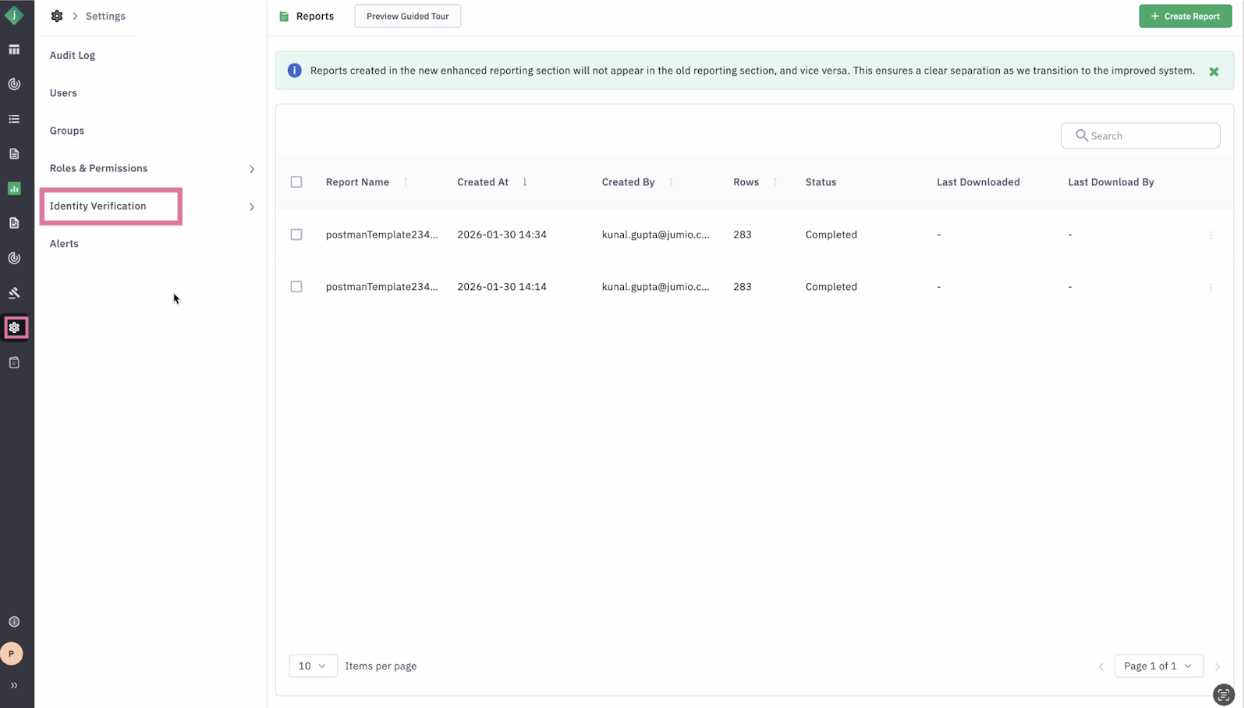
Step 1: Log in to the Jumio Portal and navigate to Settings > Identity Verification > Alerts.
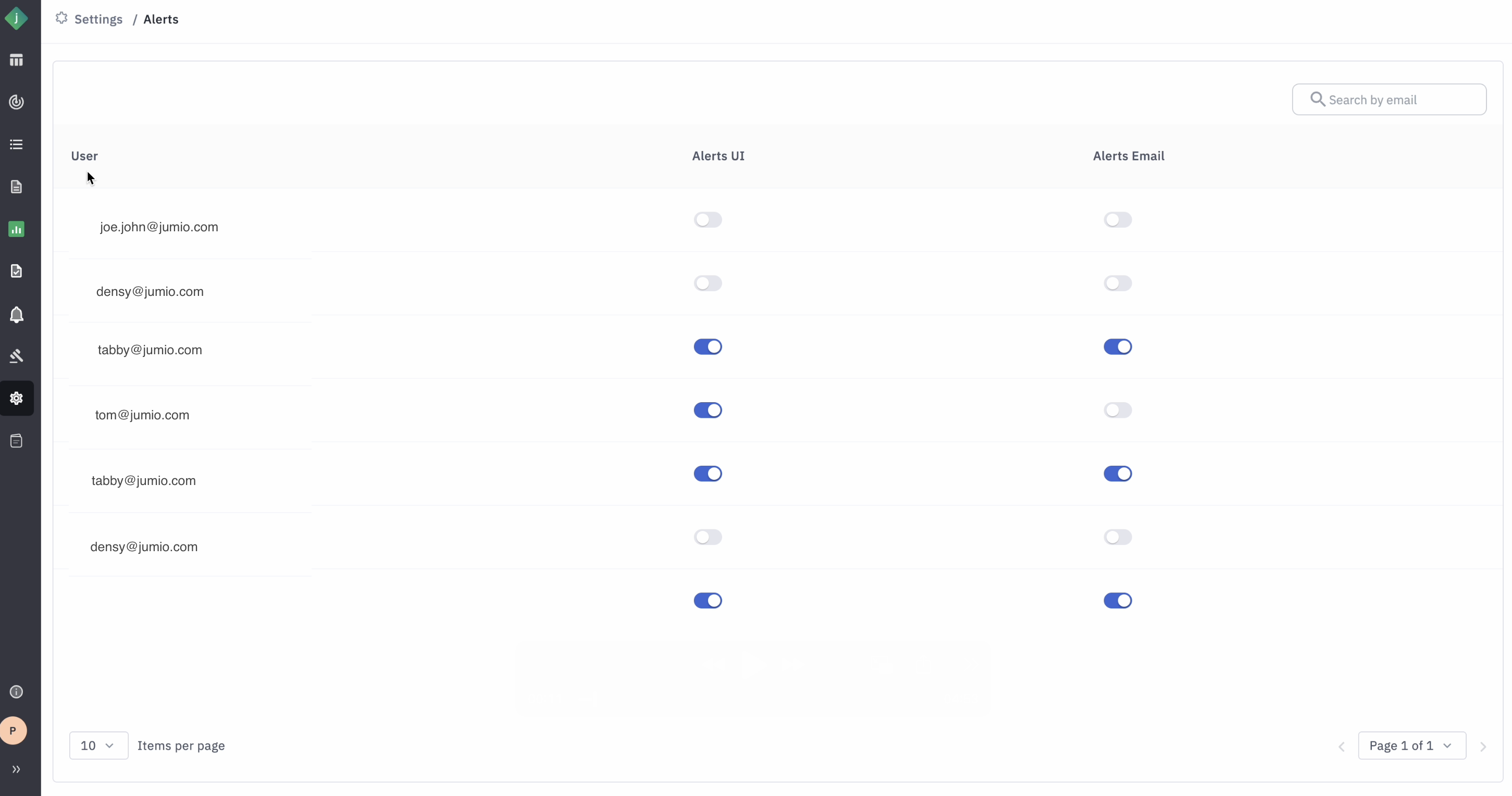
Step 2: Review the list of users currently associated with the tenant.
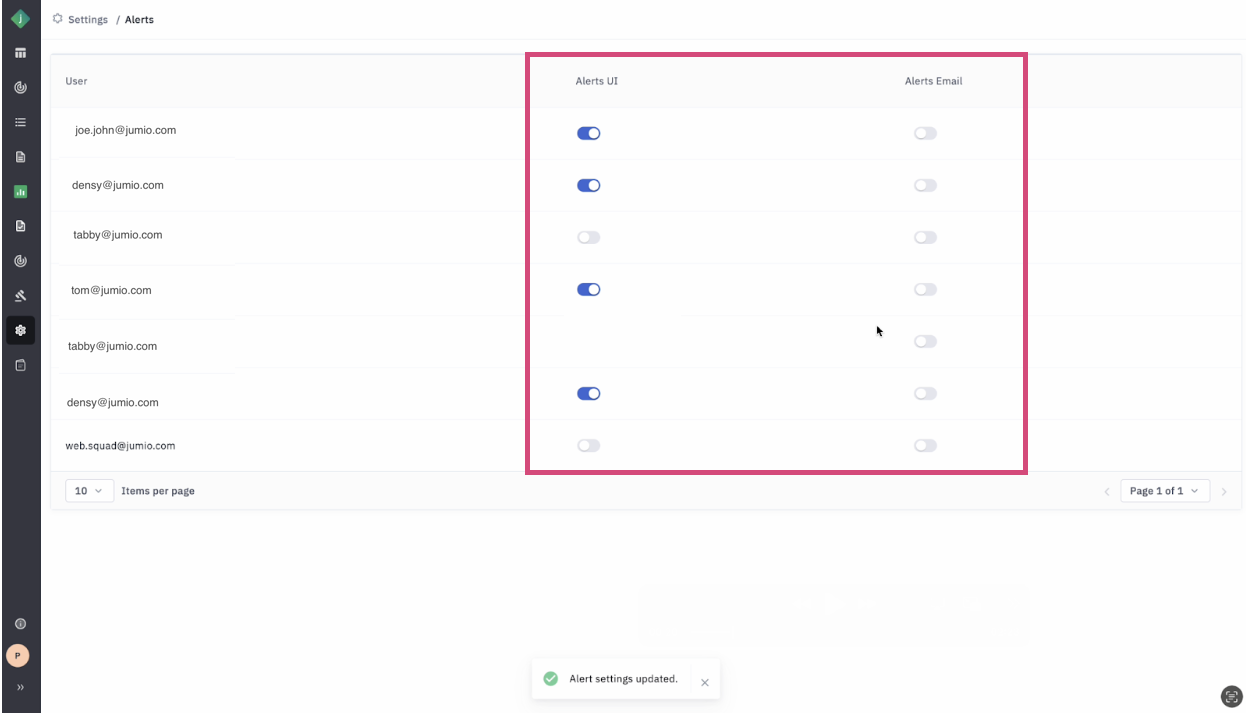
Step 3: Toggle the "Email Alerts" or "UI Alerts" options next to each user to enable or disable specific notification types.
Receiving Daily Alert Summary Over Email
Your Jumio Portal users can be configured to receive the Daily Alert Summary over email addresses configured within the Jumio Portal. New users interested in receiving these alerts will need to have their account created on the Jumio Portal for your tenant.
There will be one Daily Alert Summary email per tenant for the allowed users.
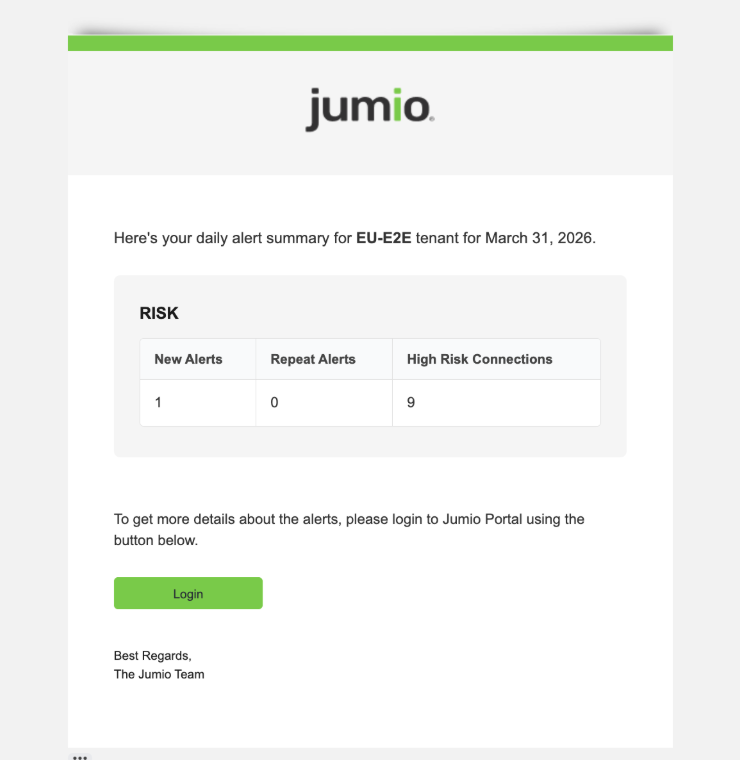
The daily alert email shows:
| Field | Description |
|---|---|
| New Alerts | Count of new alerts generated for the first time on a transaction |
| Repeat Alerts | Count of alerts that were previously generated and have reoccurred due to a new risk incident |
| High Risk Connections | The total number of high-risk transactions connected to alerted transactions |
An increase in the sum of High Risk Connections and Repeated Alerts since the last Daily Alert Summary indicates a raised risk for transactions.
Users need to log in to their accounts on the Jumio Portal to access Alert Details. They will find the alerts listed under the Alert Management view.
Alert Management on Portal
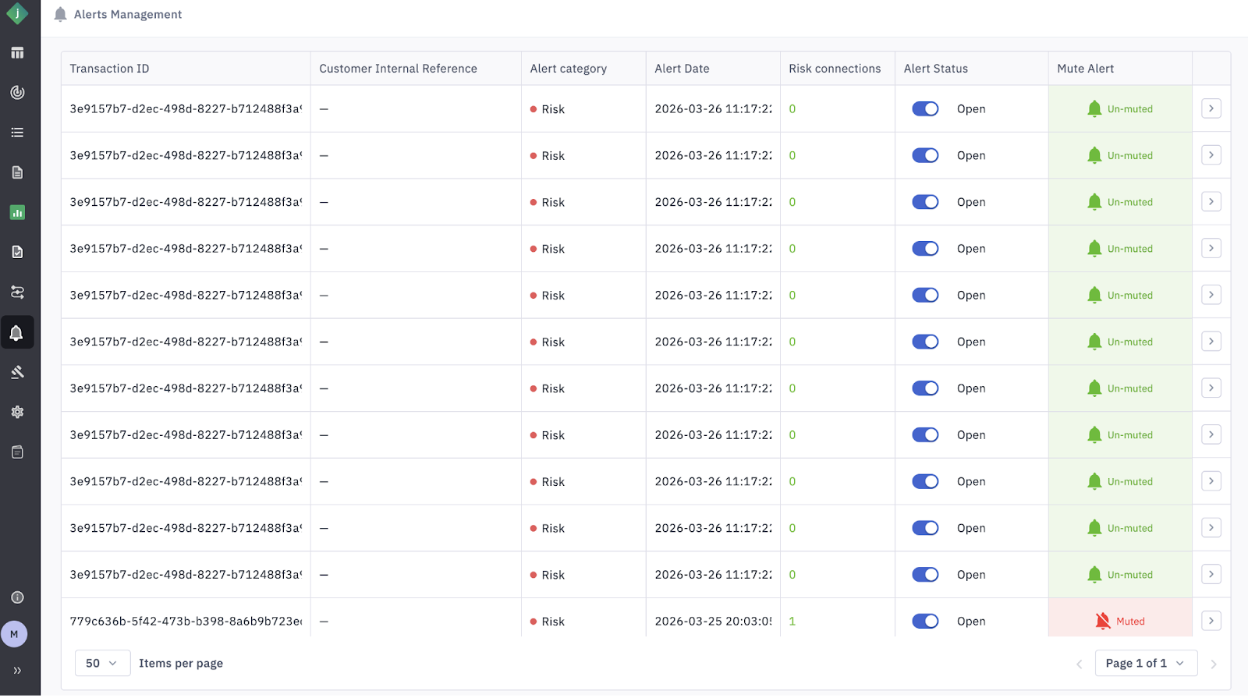
To view and manage Jumio Watch alerts directly from the Alert Management menu, click any alert in the list view to open its dedicated details page for a deeper look.
Available Actions
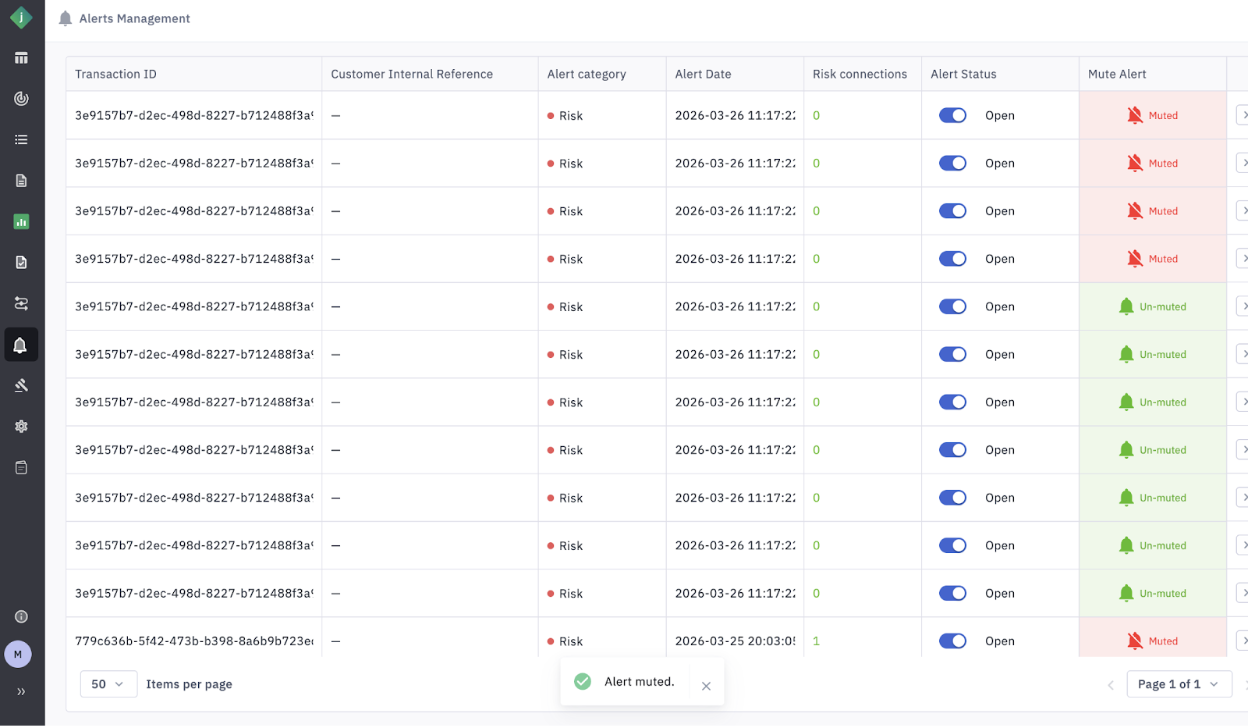
1. Mute/Unmute: Muting an alert prevents any further alerts of the same Alert Category and Risk Reason from being generated for the transaction. This allows you to manage future alerts if your investigations lead to an outcome that no further alerts of a similar type are necessary for this transaction.
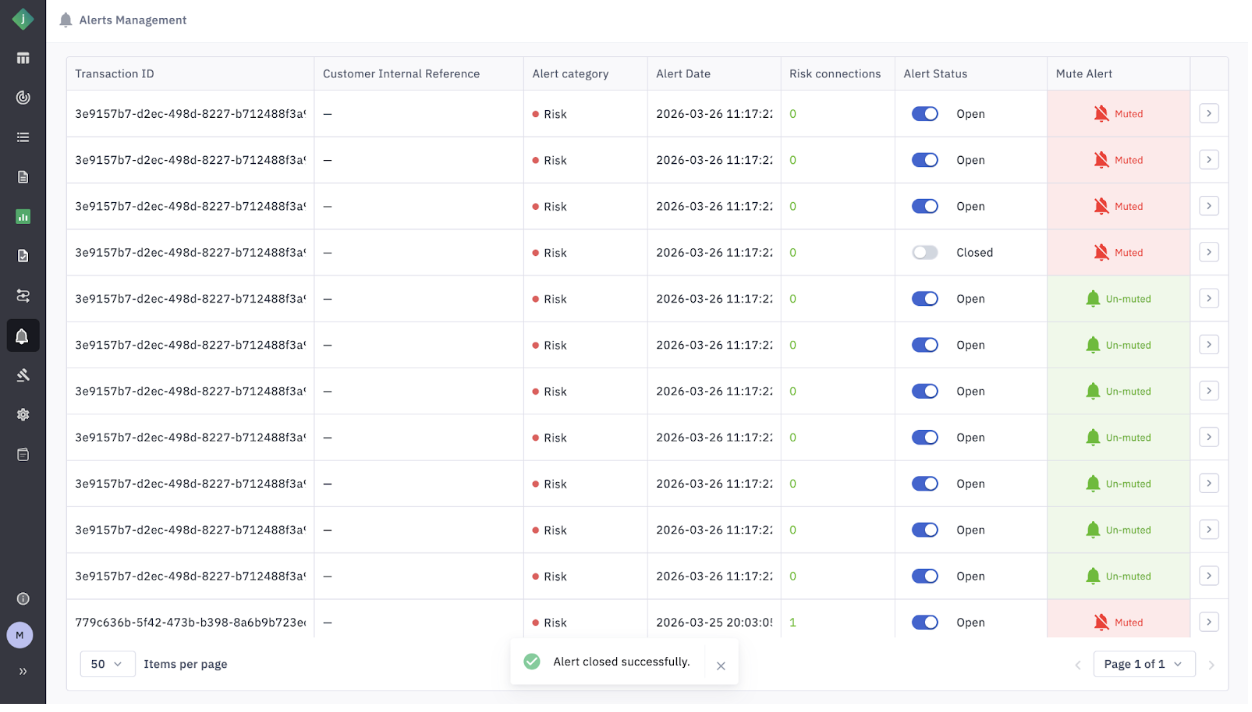
2. Update Status: To manage your work queue, mark an Alert as “Closed” once it has been reviewed and the investigation is closed. This will allow you to focus on Alerts that are still open. You can also toggle alerts between Open and Closed, as required. Closed alerts are excluded from all future reporting.
Alerts open for more than 30 days will automatically transition to Expired status.
Alert Details
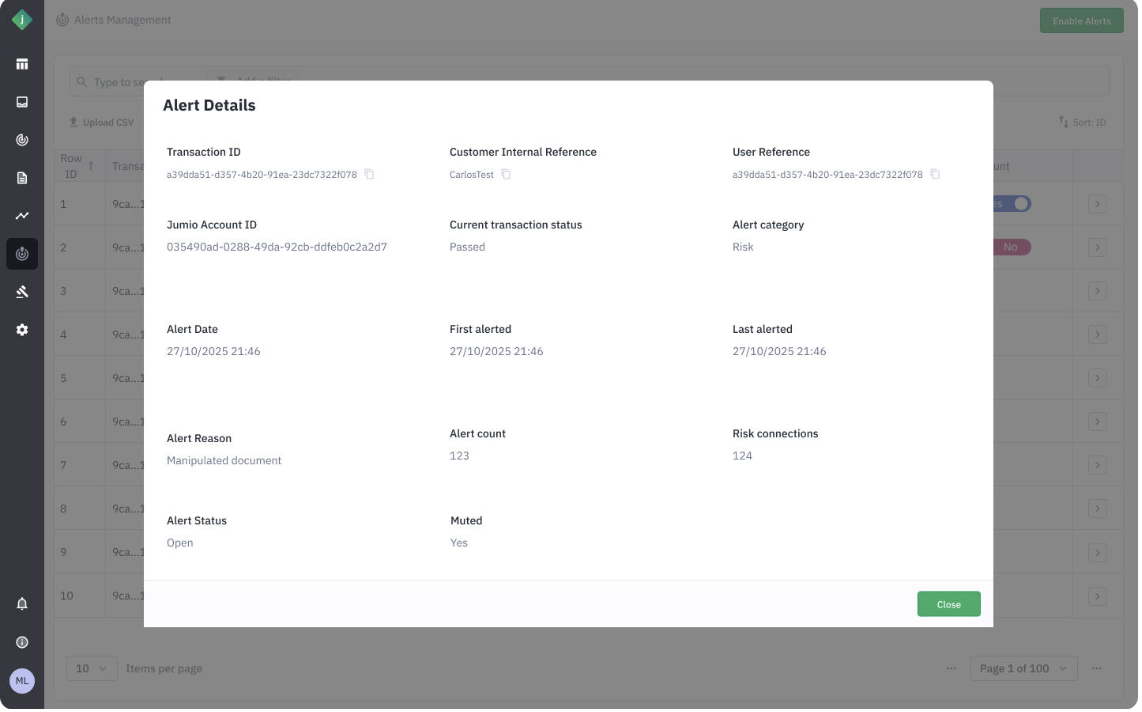
The Alert Detail view provides the following information to users:
| Field | Description |
|---|---|
| Transaction ID | The unique ID of the alerted transaction |
| Customer Internal Reference | The internal transaction reference provided when the transaction was processed |
| User Reference | The internal user account reference provided when the transaction was processed |
| Jumio Account ID | Unique user ID assigned by Jumio for each new user |
| Current Transaction Status | The original outcome of the transaction |
| Alert Category | Indicates the alert type; currently always shown as “Risk” |
| Alert Date | Date and time when the alert record was created |
| First Alerted | Date and time when the alert was first triggered for the same Alert Category and Risk Reason combination |
| Last Alerted | Date and time when the alert was most recently triggered for the same Alert Category and Risk Reason combination |
| Alert Reason | The risk reason behind the alert (e.g., a manipulated document linked to the transaction) |
| Alert Count | Number of times the alert was triggered for the same Alert Category and Risk Reason combination |
| Risk Connections | Count of unique risky connected transactions contributing to the alert |
| Alert Status | Current status of the alert (managed via the Alerts Management view) |
| Muted | If set to “Yes,” the transaction will not trigger alerts again for the same Alert Category and Risk Reason combination |
Alert Information on Transaction Details Page
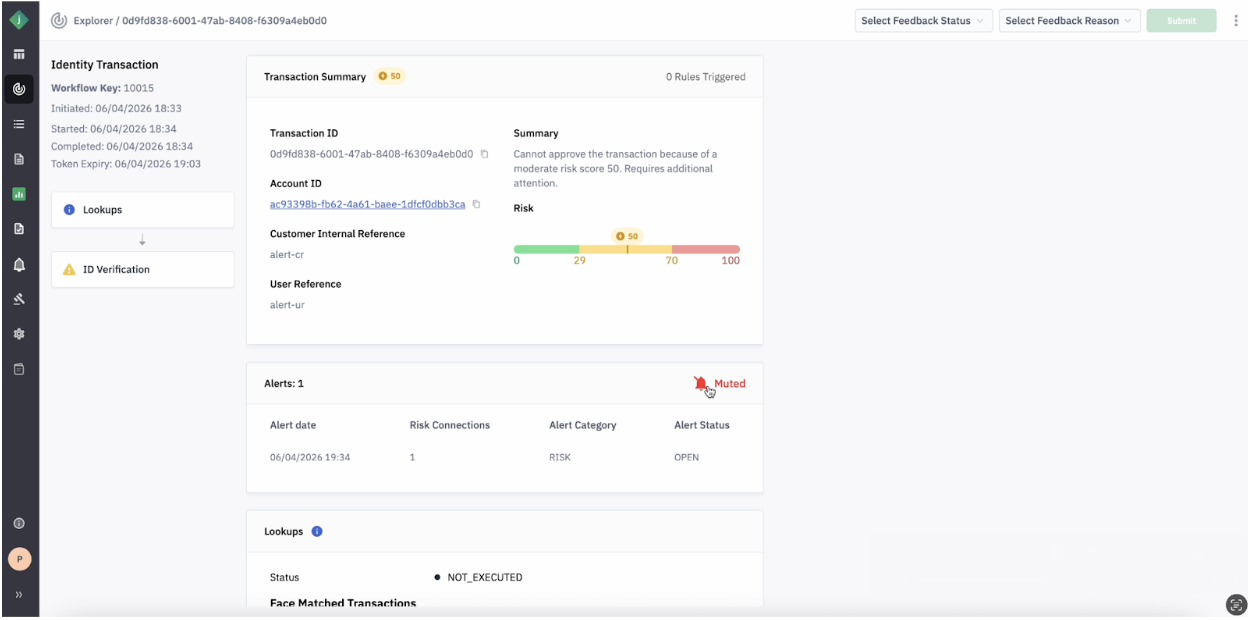
An overview of alerts for transactions can be viewed in the Transaction Summary View.
The Alert Information section shows:
| Field | Description |
|---|---|
| Count of Alerts | Number of alert records created for the selected transaction |
| Alert Date | Date when the alert was generated |
| Risk Connections | Count of connected risky transactions that contributed to the alert |
| Alert Status | Current status of the alerts (managed through the Alerts Management view) |
| Muted/Unmuted Status | Provides an option to mute all alerts for the transaction (not specific to Alert Category and Risk Reason) via the Alerts Management view. If set to “Muted”, the transaction will not be alerted again |
A transaction with multiple alerts and an increasing number of risk connections indicates a raised risk for the transaction.
Available Action
Mute Transaction - It provides an option to mute all alerts for the transaction and not for a specific Alert Category and Risk Reason, which is available through Alerts Management View. If “Muted”, then this transaction will not be alerted again.
Operational Recommendations for using Jumio Watch
Using the Daily Alert Emails
- In the configuration menu, specify users for whom receiving such email alerts ties in with their daily work (e.g., review of risky transactions).
- The sum of High Risk Connections and Repeated Alerts since the last Daily Alert Summary indicates a raised risk for transactions - those might indicate an emerging or already increasing large fraud event.
Using Alert Management in the Customer Portal
- In the configuration menu, specify users who you expect to investigate alerts and take action upon. The Alert Management view serves as a daily worklist in order to go through all open alerts, understand the reason for the alert, investigate, and take action on the user's account or transaction as per your organizational processes and policies.
- Take note that open alerts will be automatically updated whenever the same transaction receives another alert trigger for the same reason. Once an alert has been set to “closed”, no further updates will be processed under that same alert. Users should close an alert once they have taken the appropriate action as outlined by your internal policies & procedures.
- Alternatively, users can “mute” an alert. Such an alert will still receive updates, but you will not be alerted again via the daily alert summary. This can be helpful if users want to keep track of additional updates on the same alert, e.g., in order to see how often the same alert reason still keeps on showing. Please take note that an alert notification for the same transaction may still happen if a new alert is triggered for another risk reason.
Using Alert Information in the Transaction Details Page
- Users can use this view in order to understand and monitor alerts for a single transaction, e.g., how often it was alerted. To stop receiving alert notifications for a transaction entirely, users can set the transaction to “mute”.