Batch Transactions
You can initiate multiple transactions and upload the required credentials as a batch using SFTP and CSV files. This process supports uploading ID, Selfie, and document images, as well as prepared data to improve verification and fraud detection.
This feature must be enabled for your tenant, contact Jumio Support. The feature is only available to customers using the Jumio Platform and Portal. It is not available to customers using Netverify or other older Jumio products.
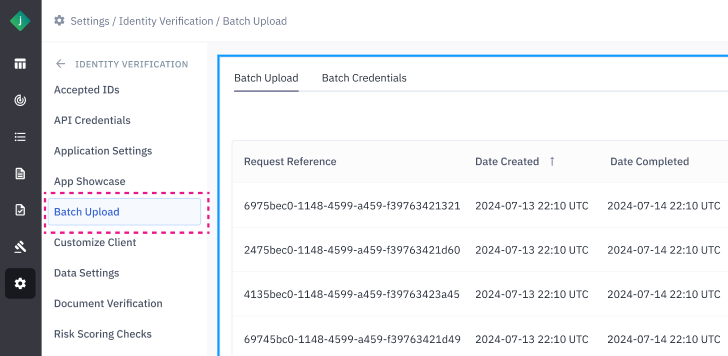
When batch processing is enabled for your tenant you can access the Jumio Portal / Settings / Identity Verification / Batch Uploads page. From which you can:
- Generate the SSH Key for secure SFTP uploads. See Batch Credentials.
- Select OAuth2 credentials to authorize batch transactions.
- Check the status of batch jobs you have run and locate processed transactions. See Batch Status and Locating Processed Transactions.
The batch files are uploaded to a folder identified by a UUID. See Batch Uploads for details on file formats, naming the folder, initiating the processing, and troubleshooting problems.
Batch Credentials Setup
For the Batch Credentials Setup navigate to Jumio Portal / Settings / Identity Verification / Batch Uploads page select Batch Credentials tab and do the following:
- Select the OAuth2 credentials that will be used to authorize the transactions in the batch.
- Generate the SSH Key pairs you will use to connect to the Jumio SFTP server.
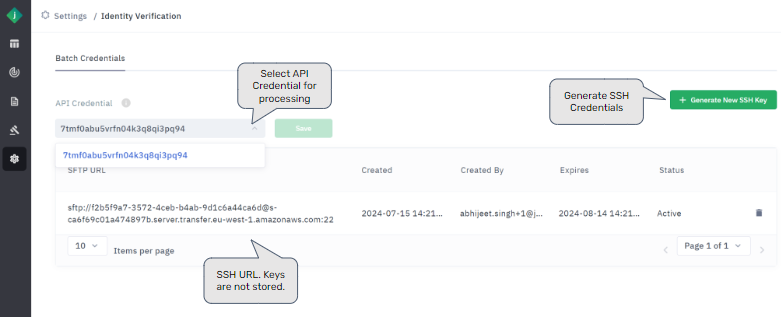
OAuth2 Credentials for Batch Transactions
Select the Oauth2 credentials that will be used to authorize the batch transactions.
You must select an active credential defined in the Jumio Portal / Settings / Identity Verification / Api Credentials / OAuth2 Clients page, with permissions to both Initiate and Retrieve & Delete.
- Navigate to the Jumio Portal / Settings / Identity Verification / Batch Uploads page and select the Batch Credentials tab.
- From the API Credential drop-down list select the credential you want to use. The list will show all active credentials, so be sure and select a credential with with permissions to both Initiate and Retrieve & Delete.
- Click Save and apply the credentials for all batch transactions.
The selected credential will be used to authorize all batch transactions for the tenant. You can update the credential at any time by creating a new credential in the OAuth2 Clients page and repeating the steps above.
SSH Key Generation for SFTP
Generate the SSH key pair that will be used to encrypt data transfers between your SFTP client and the Jumio server for your tenant.
- Navigate to the Jumio Portal / Settings / Identity Verification / Batch Uploads page and select the Batch Credentials tab.
- Click Generate new SSH Key.
- In the Generate new SSH Key dialog, verify that the Merchant GUID for your tenant and your email are correct, and click Confirm.
- Copy both private and public keys from the SSH Key Pair dialog and store them securely where they can be accessed by your SFTP client. Add Private Key to a *.pem file (example “sshkey.pem”) within your system to use within SFTP client for authentication
After you close the SSH Key Pair dialog the keys will no longer be available. If you lose the private key you must generate a new one.
- Close the dialog, and note the SFTP URL that is displayed. This is the URL you will connect to from your SFTP client.
The SSH key is valid for 30 days. Lost keys require generating a new key.
Batch Uploads
To upload a batch and initiate the transaction processing:
- Connect to the SFTP server for your tenant from your SFTP Client. See SFTP Client.
- Create a folder with a UUID for the name. See Create Folder with UUID Name.
- Upload a CSV file with the transaction data. See CSV File Format.
- If the transactions require ID, Selfie, and/or Document images upload the archive file. See Images.
- Upload a file named DONE to initiate processing.
Monitor the status of the batch job in the Jumio Portal / Settings / Identity Verification / Batch Uploads page. See Batch Status and Locating Processed Transactions.
SFTP Client
In your SFTP client connect to the server for your tenant using the SFTP URL shown in the Jumio Portal / Settings / Identity Verification / Batch Uploads / Batch Credentials tab:

Use the generated SSH Key for the connection. You will log into a home folder dedicated to your organization.
Disable the resume transfer and timestamp preservation features if they are supported by your SFTP client.
Create Folder with UUID Name
After connecting to the server create a folder on the server, using a UUID as the folder name. For example:
096c7aef-c3dd-4427-9f93-f64295b8f2d6
UUID generators are available in most programming languages.
Examples: UUID Generators
Python

import uuid
random_uuid = uuid.uuid4()
NodeJS

import crypto from 'crypto';

function uuidv4() {
  return ([1e7]+-1e3+-4e3+-8e3+-1e11).replace(/[018]/g, c =>
    (c ^ crypto.getRandomValues(new Uint8Array(1))[0] & 15 >> c / 4).toString(16)
  );
}

const randomUUID = uuidv4();
Java

import java.util.UUID;
UUID randomUUID = UUID.randomUUID();
.NET

Guid randomUUID = Guid.NewGuid();
If you are creating a folder manually, you can also search and utilize one of “UUID Generator” websites available online.
CSV File Format
Create a CSV (comma separated values) file with one header row and a row for each transaction in the batch.
Sample CSV File
Download the sample file here.
Example Batch CSV File
workflowDefinitionKey,accountId,riskScoreRulesetId,customerInternalReference,userReference,frontImage,backImage,faceImage,document1,document1Country,document1Types,userConsentUserIp,userConsentUserLocationCountry,userConsentUserLocationState,userConsentConsentObtained,userConsentConsentObtainedAt,preparedData.firstName,preparedData.lastName,preparedData.phoneNumber,preparedData.email,preparedData.address.line1,preparedData.address.postalCode,preparedData.address.city,preparedData.address.subdivision,preparedData.address.country
10015,7473ba2b-473c-4e71-b2ad-b7040b6bcb13,,test reference 1,user12762573,FRA_ID_front.jpg,FRA_ID_back.jpg,,,,,226.80.211.232,USA,CA,yes,2022-07-20T17:20:35.000Z,,,,,,,,,
10011,,,test reference 2,user23827923,FRA_ID_front.jpg,FRA_ID_back.jpg,FRA_ID_face.jpg,,,,226.80.211.232,USA,CA,yes,2022-07-20T17:20:35.000Z,,,,,,,,,
10010,,133e9f99-519b-481b-9d92-6fdcabb75b98,test reference 3,user12861249,,,,,,,226.80.211.232,USA,CA,yes,2022-07-20T17:20:35.000Z,Roger,Jackson,4.31503E+12,abhiabhiabhi@gmail.com,12345 SW Address Ln,12345,Any Town,OR,USA
10232,7473ba2b-473c-4e71-b2ad-b7040b6bcb13,,test reference 4,user12762573,,,,USA_SSC.jpeg,USA,SSC,226.80.211.232,USA,CA,yes,2022-07-20T17:20:35.000Z,Roger,Jackson,4.31503E+12,abhiabhiabhi@gmail.com,12345 SW Address Ln,12345,Any Town,OR,USA
,,,test reference 5,user98734538
- Please be cautious while using MS-Excel for CSV file handling as it tends to change formatting for certain fields when saved, which may make the CSV file invalid.
- There must be no more than 10,000 rows in the CSV file.
- If there is any field which has comma (,) included, it needs to be put within double quotes (“”) to ensure file format remains valid.
- The csv filename needs to be "input.csv". Any other filename will not be accepted.
Field Description
| Field | Required | Description |
|---|---|---|
workflowDefinitionKey | yes | The workflow key. Default is 10015. |
customerInternalReference | yes | Customer internal reference for a request to link it in the customer backend (must not contain any PII). Must not contain any of the following characters: <>"/;\`%{} |
accountId | no | Used only in case of Account Update and not a new Account Creation. Refers to Jumio-provided Account ID in response to Account Creation step. More info. |
riskScoreRulesetId | no | Used to specify a ruleset to use instead of the default ruleset configured for the tenant. More info. |
userReference | no | Reference for the end user in the customer backend (must not contain any PII). Must not contain any of the following characters: <>"/;\`%{} |
frontImage | no | File name of the front image, including path relative to the CSV file, if it is present in a subdirectory within the UUID directory. The file must be in the uploaded images. |
backImage | no | File name of the back image, including path relative to the CSV file, if it is present in a subdirectory within the UUID directory. The file must be in the uploaded images. |
faceImage | no | File name of the face (selfie) image, including path relative to the CSV file, if it is present in a subdirectory within the UUID directory. The file must be in the uploaded images. |
document1 | no | For workflows with document verification. File name of the document, including path relative to the CSV file. File format and requirements: see here. |
document1Country | no | ISO 3166-1 alpha-3 country code of the document's origin. Used for document verification. |
document1Types | no | Type of the document being processed. Supported types listed here. |
userConsentUserIp | no* | If applicable, consent is required similar to API channel. |
userConsentUserLocationCountry | no* | If applicable, consent is required similar to API channel. |
userConsentUserLocationState | no* | If applicable, consent is required similar to API channel. |
userConsentConsentObtained | no* | If applicable, consent is required similar to API channel. |
userConsentConsentObtainedAt | no* | If applicable, consent is required similar to API channel. |
preparedData.firstName | no** | May be required if you are uploading prepared data. |
preparedData.lastName | no** | May be required if you are uploading prepared data. |
preparedData.phoneNumber | no** | May be required if you are uploading prepared data. |
preparedData.email | no** | May be required if you are uploading prepared data. |
preparedData.dateOfBirth | no** | May be required if you are uploading prepared data. |
preparedData.address.line1 | no** | May be required if you are uploading prepared data. |
preparedData.address.postalCode | no** | May be required if you are uploading prepared data. |
preparedData.address.city | no** | May be required if you are uploading prepared data. |
preparedData.address.subdivision | no** | May be required if you are uploading prepared data. |
preparedData.address.country | no** | May be required if you are uploading prepared data. |
- Populating the userConsent fields conforms to the requirements described in End-User Consent to Collect Personal Data.
- Any prepared data fields required by the workflow can be uploaded through the csv. Use the
preparedDataformat in the header row. Some prepared data fields are required if you are Uploading Prepared Data.
Images
Upload all images referenced in the CSV file to the folder created with the UUID name. See also Uploading Credentials for additional information on image requirements.
Batch Status and Locating Processed Transactions
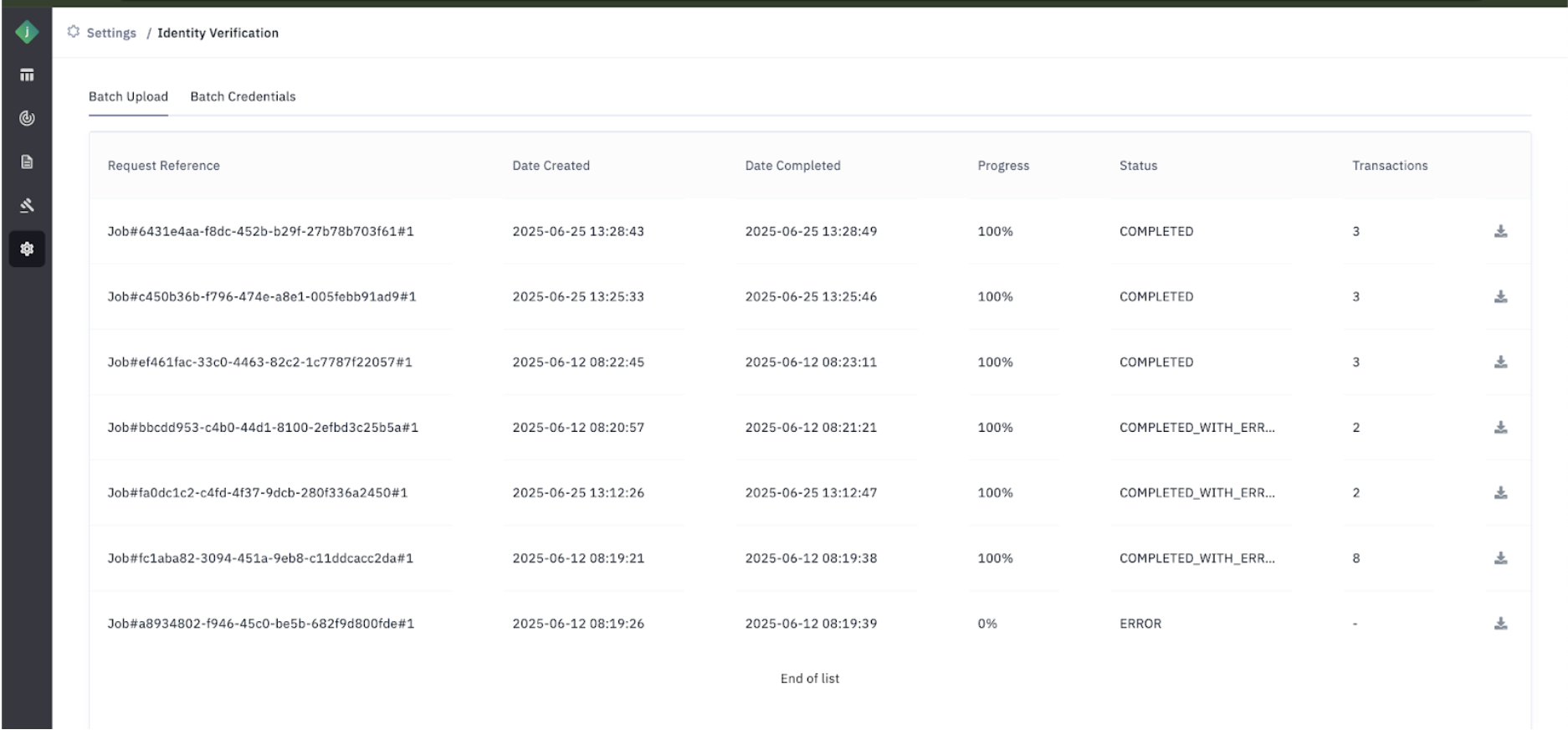
You can see details about the batch job in the the Jumio Portal / Settings / Identity Verification / Batch Uploads page.
Status
| Status Name | Comment |
|---|---|
| CREATED | Initial job creation |
| IN_PROGRESS | Job execution initialized |
| IN_PROGRESS_INGEST | Validating the input file and ingesting into the database for processing |
| IN_PROGRESS_PROCESS | Create/upload credentials and finalize workflows based on data from the ingest step |
| IN_PROGRESS_WAITING_PROCESSED_CONFIRMATION | All workflows are created, credentials uploaded, and finalized; now waiting for PROCESSED messages for each workflow |
| COMPLETED | Job execution received the target amount of workflow PROCESSED messages |
| COMPLETED_WITH_ERROR | At least one of the workflows has been errored out. See Error Messages |
| ERROR | An error is encountered in the middle of a job execution. See Error Messages |
Error Messages
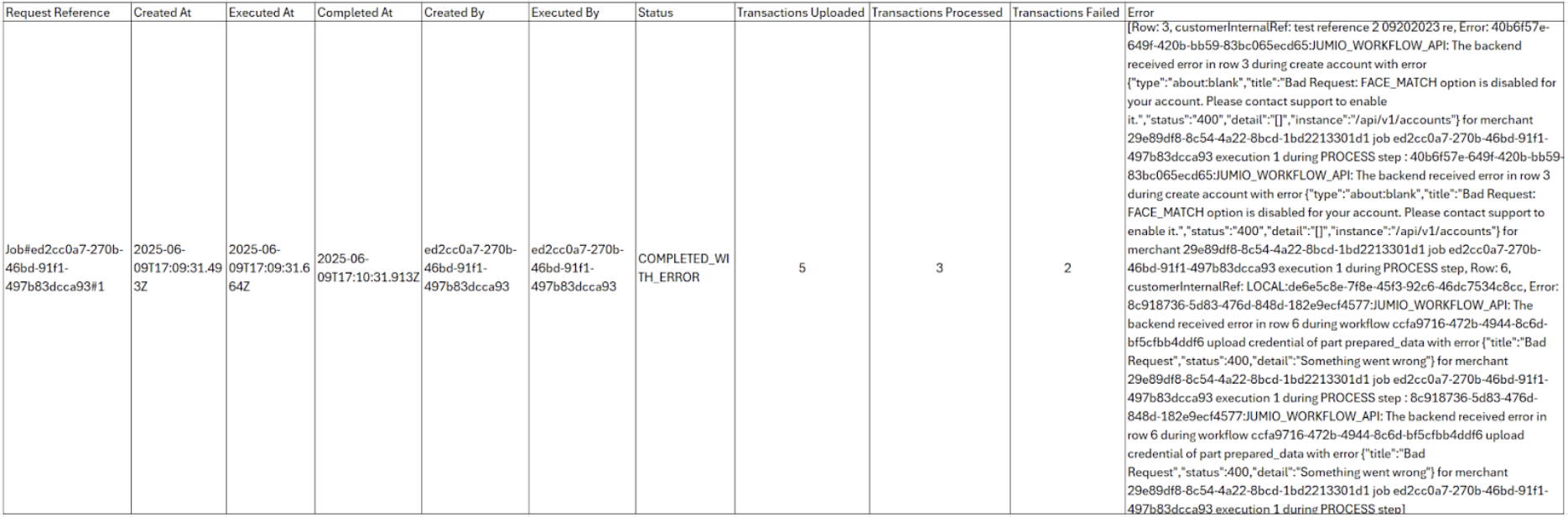
Download the job information to see error messages.
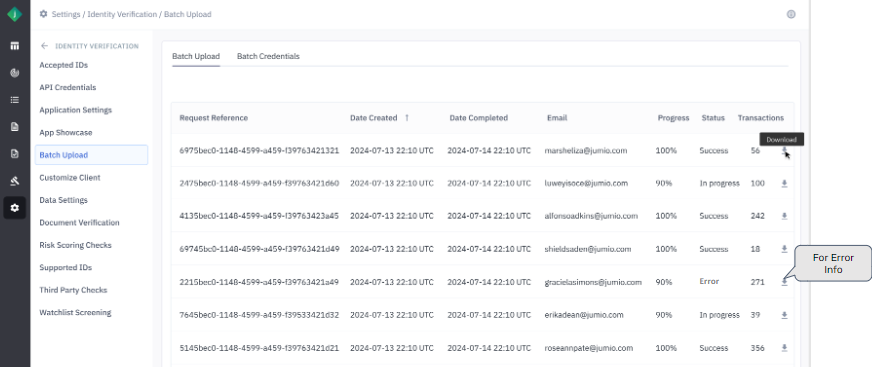
There can be two error categories:
- If input file validation fails.
- If specific transactions have a processing error.
File Validation Errors
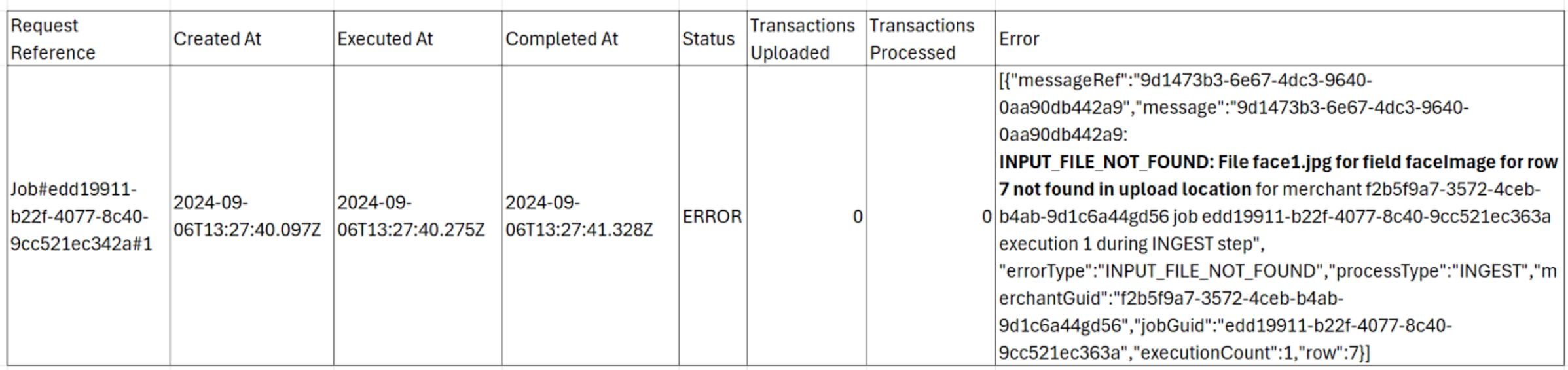
If the input file validation has errors (for example, if a required column is missing), no workflows will be executed. Fix the issue with the file and create a new batch job.
File Validation Error Message Example
File Validation Error Messages
| Error Name | Detail Present to User | Can User Self-Repair | Comment |
|---|---|---|---|
INPUT_FILE_NOT_FOUND | YES | YES | Either the input.csv is not found or an image file referenced within input.csv is not found. |
INVALID_CSV | YES | YES | The CSV is invalid. This could be due to:
|
INVALID_FILE_SIZE | YES | YES | Either the input.csv exceeds the allowed file size, or one of the images referenced within input.csv exceeds the allowed file size. |
Transaction Processing Errors
Transactions from the input CSV are processed sequentially by the row number. If a transaction causes an error, the batch job will not stop and will continue processing all subsequent records. To identify any failures, you must download the error logs for the completed job. It will also show the total number of records, how many succeeded, and how many failed. These logs contain the error details for each problematic transaction, and you only need to correct and resubmit the specific records listed in them under a new Batch Upload job.
Transaction Processing Error Message Example
Transaction Processing Error Messages
| Error Name | Detail Present to User | Can User Self-Repair | Comment |
|---|---|---|---|
JUMIO_WORKFLOW_API | NO | NO/YES | This is an internal error, due to the Jumio API not being able to complete the workflow process. |
JUMIO_WORKFLOW_API_UNAUTHORIZED | NO | NO/YES | The Jumio API rejected the workflow request with Unauthorized (401).
|
JUMIO_WORKFLOW_API_FORBIDDEN | NO | NO/YES | The Jumio API rejected the workflow request with Forbidden (403).
|
INGEST_ERROR | NO | NO | This is due to some unexpected input validation error other than the ones listed above. Contact Support. |
PROCESS_ERROR | NO | NO | This is due to some unexpected processing error while reading the raw records and creating workflows. Contact Support. |
NO_AVAILABLE_EXECUTOR | NO | NO | Contact Support. |
Locating Processed Transactions
You can retrieve all processed transactions using the same Request Reference you see on the status page as a "filter" criteria within the "Reporting Criteria" field in explorer page on Jumio Portal.
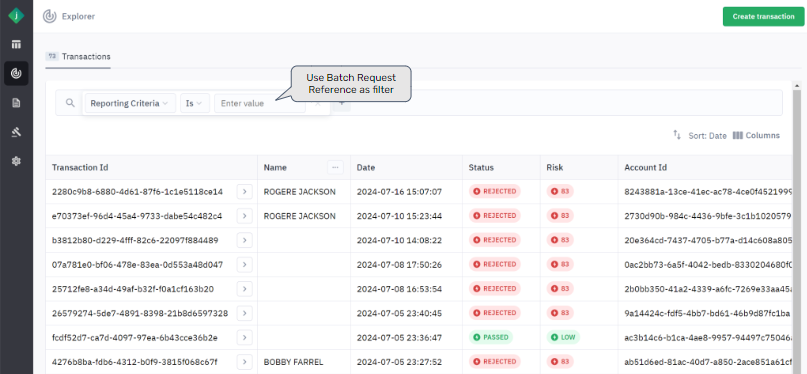
Remember, batch transactions use the API Channel.