Introduction to v3
This content applies to the legacy v3 products. Documentation for the current Jumio Platform is available at Jumio Documentation.
The Jumio v3 (Legacy) Platform API allows you to manage your user journeys. It allows you to create and update accounts for your users, prompt them to provide data such as a photo ID and selfie, and get identity verification results in real time so you can complete their onboarding.
The v3 Platform API is user-based and highly flexible, allowing various workflows that can be easily combined into a single user journey. Each workflow defines a single transaction executing a series of specific tasks, such as data extraction and a liveness check. Multiple workflows can be executed on the same account. Your workflows can execute functionality from several Jumio products, including:
ID Verification: Is this photo ID valid? Identity Verification: Is this person who they say they are? The following diagram shows several possible workflows:
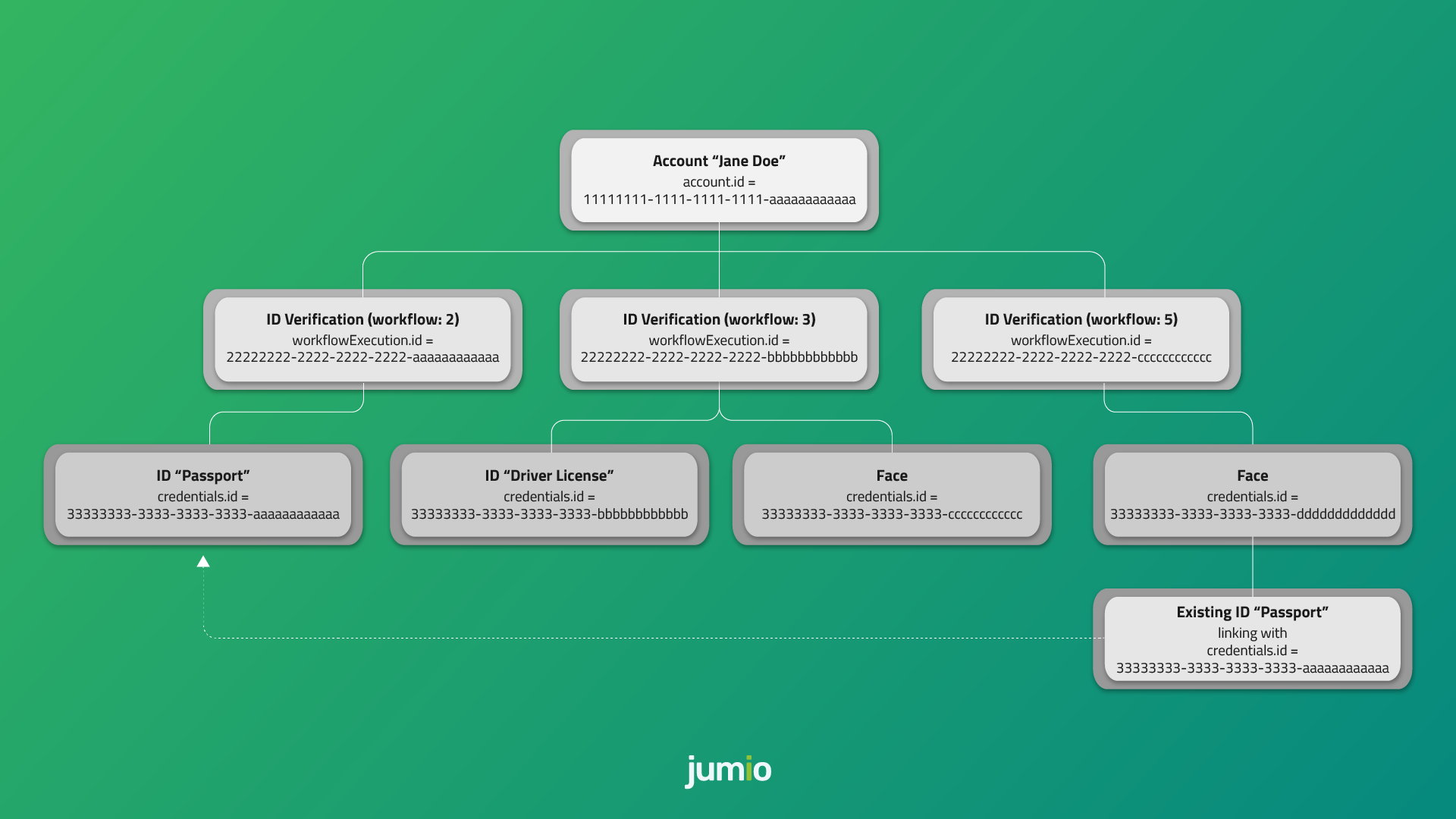
Some functionalities described in this document might be unavailable, depending on the scope of your license with Jumio. Contact your Jumio Solutions Engineer if you have any questions.
Implementation Steps:
Account Creation Account Update Data Acquisition Finalization
Authentication and Encryption
API calls are protected using either HTTP Basic Authentication or OAuth2.
⚠️ Never share your API token, API secret, or OAuth2 credentials with anyone — not even Jumio Support! The Account Management Service initiates the acquisition process and returns:
either a JSON Web Token (JWT), which can be used to authenticate to the Jumio backend system to use with the SDK or Redirect-URLs, which can be used to upload documents using the other channels At the moment, your Basic Auth credentials are constructed using your API token as the User ID and your API secret as the password. You can view and manage your API token and secret in the Customer Portal under:
Settings > API credentials > API Users
OAuth2
Your new OAuth2 credentials are constructed using your API token as the Client ID and your API secret as the Client secret. You can view and manage your API token and secret in the Customer Portal under:
Settings > API credentials > OAuth2 Clients Client ID and Client secret are used to generate an OAuth2 access token. OAuth2 has to be activated for your account. Contact your Jumio Account Manager for activation.
Access Token URL (OAuth2) US: https://auth.amer-1.jumio.ai/oauth2/token EU: https://auth.emea-1.jumio.ai/oauth2/token SG: https://auth.apac-1.jumio.ai/oauth2/token The TLS Protocol is required to securely transmit your data, and we strongly recommend using the latest version. For information on cipher suites supported by Jumio during the TLS handshake see supported cipher suites.
ℹ️ Calls with missing, incorrect or suspicious headers or parameter values will result in HTTP status code 400 Bad Request Error or 403 Forbidden
Examples
Request Access Token
curl --location --request POST 'https://auth.amer-1.jumio.ai/oauth2/token' \
    --header 'Accept: application/json' \
    --header 'Content-Type: application/x-www-form-urlencoded' \
    --data-raw 'grant_type=client_credentials' \
    --basic --user CLIENT_ID:CLIENT_SECRET
Response
{
  "access_token": "YOUR_ACCESS_TOKEN",
  "expires_in": 3600,
  "token_type": "Bearer"
}
Access Token Timeout
Your OAuth2 access token is valid for 60 minutes. After the token lifetime is expired, it is necessary to generate a new access token.
Workflow Transaction Token Timeout
The token lifetime is set to 30 minutes per default. It can be configured via the Jumio Customer Portal and can be overwritten using the API call (tokenLifetime). Within this token lifetime the token can be used to initialize the SDK, API or Web journey.
As soon as the workflow (transaction) starts, a 15 minutes session timeout starts. For each action performed (capture image, upload image) the session timeout will reset, and the 15 minutes will start again.
Account Creation
Create a new account for your end user by using the following API endpoint and below mentioned request headers and request body:
HTTP Request Method: POST
US: https://account.amer-1.jumio.ai/api/v1/accounts EU: https://account.emea-1.jumio.ai/api/v1/accounts SG: https://account.apac-1.jumio.ai/api/v1/accounts
Request Headers
The following fields are required in the header section of your Request
Accept: application/json
Content-Type: application/json
Content-Length: see RFC-7230
Authorization: see RFC6749
User-Agent: YourCompany YourApp/v1.0
⚠️ Jumio requires the User-Agent value to reflect your business or entity name for API troubleshooting. ℹ️ Calls with missing or suspicious headers, suspicious parameter values, or without OAuth2 will result in HTTP status code 403 Forbidden
Request Body
The body of your initiate API request allows you to:
provide your own internal tracking information for the user and transaction. specify what user information is captured and by which method. preset options to enhance the user journey. Values set in your API request will override the corresponding settings configured in the Customer Portal.
(Mandatory parameters in bold.)
| Parameter | Type | Max. Length | Notes |
|---|---|---|---|
| customerInternalReference | string | 100 | Customer internal reference for linking the request in the customer backend (must not contain any PII) |
| workflowDefinition | object | – | Definition of the specific documents required to execute the workflow capabilities |
| userConsent2 | object | – | User consent required where facial recognition or biometric data processing is used. Possible values: See userConsent |
| workflowDefinition.key | object | – | Key of the workflow definition to execute. See Workflow Definition Keys |
| workflowDefinition.credentials | array (object) | – | Optional. Customize the acquiring and workflow process. See workflowDefinition.credentials for possible values |
| workflowDefinition.capabilities | object | – | Optional. Customize the acquiring and workflow process. See workflowDefinition.capabilities for possible values |
| userReference1 | string | 100 | Reference for the end user in the customer backend (must not contain any PII) |
| reportingCriteria | string | 255 | Additional information provided by the customer for searching and aggregation purposes |
| callbackUrl | string | 255 | Callback URL for this request. Overrides the callback URL set in the Customer Portal |
| tokenLifetime | string | – | Valid period unit: s (seconds), m (minutes), h (hours), d (days). Minimum: 5m, Maximum: 60d, Default: 30m. Overrides Authorization token lifetime in the Customer Portal. Example: 1d, 30m, 600s |
| web | object | – | Parameters relevant only for the Web channel |
| web.successUrl | string | 255 | URL to redirect the end user after a successful web acquisition. Overrides success URL in the Customer Portal |
| web.errorUrl | string | 255 | URL to redirect the end user after a failed web acquisition. Overrides error URL in the Customer Portal |
| web.locale | string | 5 | Renders content in the specified language. Overrides default locale in the Customer Portal. See supported locale values |
1 Mandatory request parameter for Workflow 32: ID Verification, Identity Verification, Screening.. 2 Mandatory for End-User Consent even if the user is not based in USA.
Request workflowDefinition.credentials
| Parameter | Type | Max. Length | Notes |
|---|---|---|---|
| category | string | – | Type of credential. Possible values: ID, FACEMAP, DOCUMENT, SELFIE |
| country | object | – | Defines the countries applicable for the workflow. Possible values: country.predefinedType, country.values |
| country.predefinedType | string | – | Determines how the country is presented to the end user. Possible values: DEFINED (default: end user cannot change), RECOMMENDED (preselected but user can change) |
| country.values | array (string) | – | List of applicable countries. At least one ISO 3166-1 alpha-3 country code must be defined for the workflow. Example: USA, BRA, DEU |
| type | object | – | Defines the credential type(s) used in the workflow. Possible values: type.predefinedType, type.values |
| type.predefinedType | object | – | Determines how the document type is presented to the end user. Possible values: DEFINED (default: user cannot change), RECOMMENDED (preselected but user can change) |
| type.values | array (string) | – | List of credential types allowed for the workflow. Possible values: • If category = ID: ID_CARD, DRIVING_LICENSE, PASSPORT, VISA • If category = FACEMAP: IPROOV_STANDARD (Web + SDK only), IPROOV_PREMIUM (Workflow 3: ID & Identity Verification Web + SDK / Workflow 9: Authentication SDK / Workflow 16: Authentication On Premise SDK), JUMIO_STANDARD |
1 Web channel: Only supports predefined country and type when both are provided. Also only a single country and a single type must be specified, a list of presets is not supported for Web.
Request workflowDefinition.capabilities
| Parameter | Type | Max. Length | Notes |
|---|---|---|---|
| watchlistScreening | object | – | Configuration options for the Watchlist Screening capability. Possible values: watchlistScreening.additionalProperties |
| watchlistScreening.additionalProperties | string | – | Provide request options for the Watchlist Screening capability. |
Request userConsent
| Parameter | Type | Max. Length | Notes |
|---|---|---|---|
| userIp | string | – | Current IP address of the end-user used during the verification. |
| userLocation | object | – | End-user location details. Possible values: userLocation.country, userLocation.state. |
| userLocation.country | string | 3 | Current country based on the end-user’s location during verification. Possible values: ISO 3166-1 alpha-3 country codes. |
| userLocation.state | string | 100 | Current state/province as per end-user location. Applicable only in countries with states (e.g., USA, CAN, AUS). For USA, CAN, AUS: provide alpha-2 state code (without country & hyphen), e.g., IL (Illinois), NSW (New South Wales). For other countries, any string if applicable. |
| consent | object | – | End-user consent details. Possible values: consent.obtained, consent.obtainedAt. |
| consent.obtained | string | – | Indicates whether end-user consent was obtained. Possible values: yes (consent given), no (consent not given), na (not applicable). Mandatory if userLocation.country = USA. |
| consent.obtainedAt | string | – | UTC timestamp when consent was obtained. Format: YYYY-MM-DDThh:mm:ss.SSSZ. Mandatory if consent.obtained = yes. |
1 Mandatory for End-User Consent even if the user is not based in USA. 2 Mandatory for End-User Consent if userLocation.country = USA / consent.obtained = yes
Response
Unsuccessful requests will return HTTP status code 400 Bad Request, 401 Unauthorized, 403 Forbidden or 404 Not Found (in case of a failed update scenario) if the scan is not available.
Successful requests will return HTTP status code 200 OK along with a JSON object containing the information described below.
| Parameter | Type | Notes |
|---|---|---|
| timestamp | string | UTC timestamp of the response. Format: YYYY-MM-DDThh:mm:ss.SSSZ. |
| account | object | Account details. Possible values: account.id. |
| account.id | string | UUID of the account. |
| sdk | object | SDK parameters (only relevant for SDK channel). Possible values: sdk.token. |
| sdk.token | string | JWT token for performing any SDK action. |
| workflowExecution | object | Workflow execution details. Possible values: workflowExecution.id, workflowExecution.credentials. |
| workflowExecution.id | string | UUID of the workflow. |
| workflowExecution.credentials | array (object) | Credential response objects. See workflowExecution.credentials. |
| web | object | Web parameters (only relevant for WEB channel). Possible values: web.href, web.successUrl, web.errorUrl. |
| web.href | string | URL for accessing the workflow in the browser. |
| web.successUrl | string | URL where the browser redirects the user after a successful web acquisition journey (defined in Customer Portal or overwritten in initiate call). |
| web.errorUrl | string | URL where the browser redirects the user after a failed web acquisition journey (defined in Customer Portal or overwritten in initiate call). |
esponse workflowExecution.credentials
| Parameter | Type | Notes |
|---|---|---|
| id | string | UUID of the credential. |
| category | string | Possible values: ID, FACEMAP, DOCUMENT, SELFIE. |
| country | object | Define at least one ISO 3166-1 alpha-3 country code for the workflow definition. Possible values: ISO 3166-1 alpha-3 country code. |
| type | object | Define the credential type codes. Possible values: ID_CARD, DRIVING_LICENSE, PASSPORT, VISA. |
| allowedChannels | array | Channels supported to upload this credential. Possible values: WEB, API, SDK. |
| api | object | Available actions for API calls (some actions may be unavailable). Only relevant for the API channel. Possible values: api.token, api.parts, api.workflowExecution. |
| api.token | string | JWT token for performing any API action. Only relevant for the API channel. |
| api.parts | object | Href to manage parts of the credential. Possible values: FRONT, BACK, FACE, FACEMAP. Only relevant for the API channel. |
| api.workflowExecution | string | Href to manage the acquisition and workflow processing. Only relevant for the API channel. |
Examples
Initiate Account
curl --location --request POST 'https://account.amer-1.jumio.ai/api/v1/accounts' \
    --header 'Content-Type: application/json' \
    --header 'User-Agent: User Demo' \
    --header 'Authorization: Bearer
    YOUR_ACCESS_TOKEN' \
    --data-raw '{
        "customerInternalReference": "CUSTOMER_REFERENCE",
        "workflowDefinition": {
            "key": 2,
            "credentials": [
                {
                  "category": "ID",
                  "country": {
                    "predefinedType": "DEFINED",
                    "values": ["USA", "CAN", "AUT", "GBR"]
                  },
                  "type": {
                    "predefinedType": "DEFINED",
                    "values": ["DRIVING_LICENSE", "ID_CARD"]
                  }
                }
            ],
            "capabilities": {
              "watchlistScreening": {
                "additionalProperties": "string"
              }
            }
        },
        "callbackUrl": "YOUR_CALLBACK_URL",
        "userReference": "YOUR_USER_REFERENCE",
        "userConsent": {
            "userIp": "226.80.211.232",
            "userLocation": {
                "country": "USA",
                "state": "IL"
            },
             "consent": {
              "obtained": "yes",
              "obtainedAt": "2022-07-20T17:20:35.000Z"

            }
        }
    }'
Account Update
After you have created an account for an end user, you can use this API to update that account. You will use this API endpoint for every new workflow (transaction) you need to initialize for that end user.
Updating an account is very similar to creating one; the request headers and body are the same in both cases. The difference is that you pass the accountId to the endpoint and use PUT instead of POST.
Request
HTTP Request Method: PUT
US: https://account.amer-1.jumio.ai/api/v1/accounts/<accountId>
EU: https://account.emea-1.jumio.ai/api/v1/accounts/<accountId>
SG: https://account.apac-1.jumio.ai/api/v1/accounts/<accountId>
Request Headers Please refer to Account Create section above.
Request Body Please refer to Account Create section above.
Response Please refer to Account Create section above.
Examples
Request
curl --location --request PUT 'https://account.amer-1.jumio.ai/api/v1/accounts/<accountId>' \
--header 'Content-Type: application/json' \
--header 'User-Agent: User Demo' \
--header 'Authorization: Bearer
YOUR_ACCESS_TOKEN' \
--data-raw '{
    "customerInternalReference": "CUSTOMER_INTERNAL_REFERENCE",
    "workflowDefinition": {
        "key": 2,
        "credentials": [
            {
                "category": "FACEMAP",
                "type": {
                    "values": ["IPROOV_STANDARD", "JUMIO_STANDARD"]
                }
            },
            {
                "category": "ID",
                "type": {
                    "values": ["DRIVING_LICENSE", "ID_CARD", "PASSPORT"]
                },
                "country": {
                    "values": ["USA", "CAN", "AUT"]
                }
            }
        ]
    },
    "userConsent": {
        "userIp": "226.80.211.232",
        "userLocation": {
            "country": "AUT"
        }
    }
}
Response
{
    "timestamp": "2021-05-28T09:17:50.240Z",
    "account": {
        "id": "11111111-1111-1111-1111-aaaaaaaaaaaa"
    },
    "web": {
        "href": "https://mycompany.web.amer-1.jumio.ai/web/v4/app?authorizationTokenxxx&locale=es",
        "successUrl": "https://www.yourcompany.com/success",
        "errorUrl": "https://www.yourcompany.com/error"
    },
    "sdk": {
        "token": "xxx"
    },
    "workflowExecution": {
        "id": "22222222-2222-2222-2222-aaaaaaaaaaaa",
        "credentials": [
            {
                "id": "33333333-3333-3333-aaaaaaaaaaaa",
                "category": "ID",
                "allowedChannels": [
                    "WEB",
                    "API",
                    "SDK"
                ],
                "api": {
                    "token": "xxx",
                    "parts": {
                        "front": "https://api.amer-1.jumio.ai/api/v1/accounts/11111111-1111-1111-1111-aaaaaaaaaaaa/workflow-executions/22222222-2222-2222-2222-aaaaaaaaaaaa/credentials/33333333-3333-3333-aaaaaaaaaaaa/parts/FRONT",
                        "back": "https://api.amer-1.jumio.ai/api/v1/accounts/11111111-1111-1111-1111-aaaaaaaaaaaa/workflow-executions/22222222-2222-2222-2222-aaaaaaaaaaaa/credentials/33333333-3333-3333-aaaaaaaaaaaa/parts/BACK"
                    },
                    "workflowExecution": "https://api.amer-1.jumio.ai/api/v1/accounts/11111111-1111-1111-1111-aaaaaaaaaaaa/workflow-executions/22222222-2222-2222-2222-aaaaaaaaaaaa"
                }
            }
        ]
    }
}
Implementation Steps: Sequence Diagram
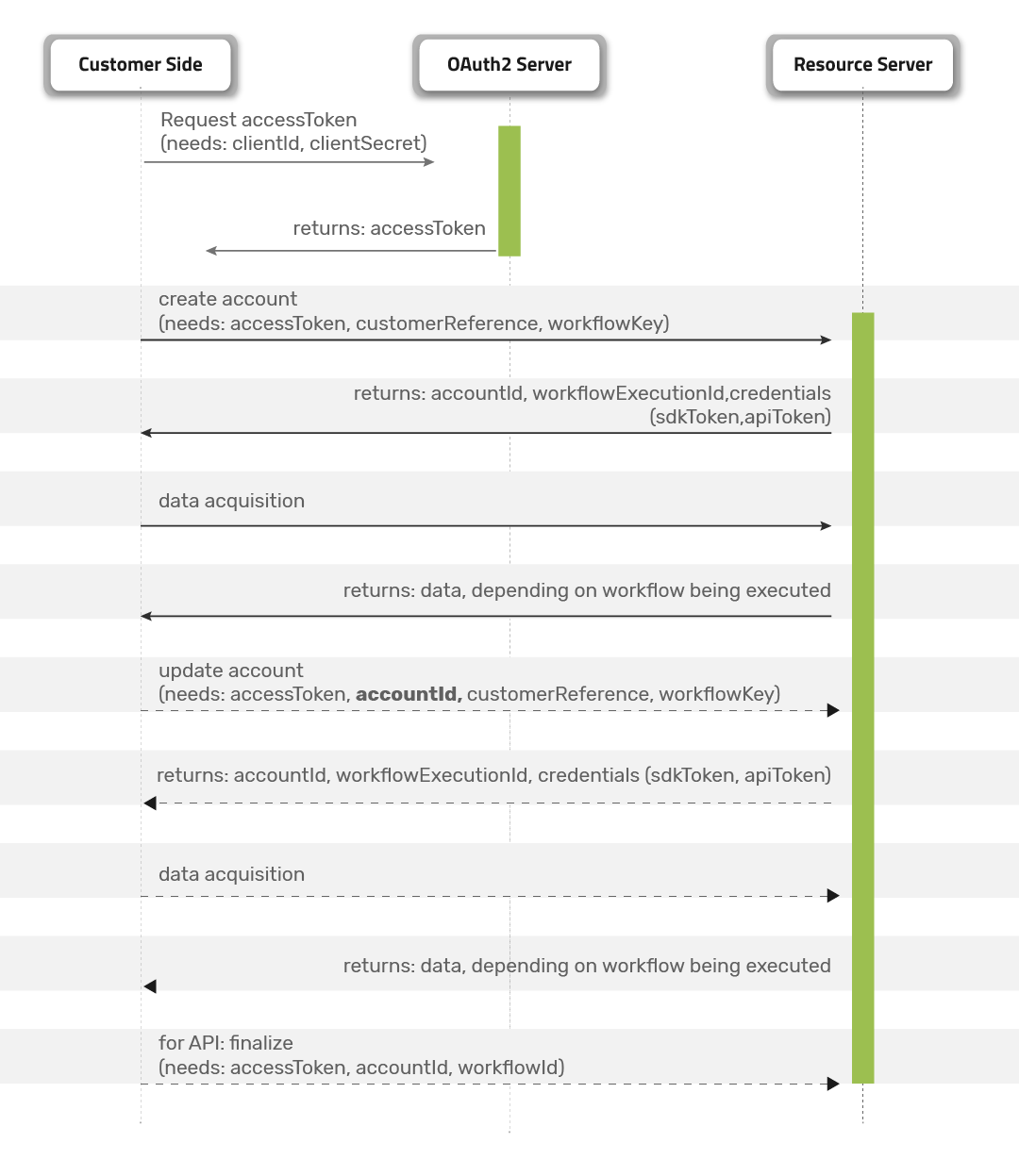
Workflow Descriptions
Workflow Definition Keys
| Definition Key | Name | Description |
|---|---|---|
| 1 | ID Capture and Storage | Captures a government-issued ID document and stores the extracted data. |
| 2 | ID Verification | Verifies a government-issued ID document and returns: (a) whether the document is valid, and (b) the data extracted from the document. |
| 3 | ID and Identity Verification | Verifies a photo ID document and returns: (a) whether the document is valid, and (b) the extracted data. Also compares the user’s face with the ID photo and performs a liveness check to confirm the person is physically present. |
| 5 | Similarity to Existing ID | Matches a user’s selfie to the face from a previously verified and stored ID document. |
| 6 | Standalone Liveness | Captures a user’s face to verify that the person is physically present and not presenting a photo or other spoofed image. |
| 9 | Authentication | Compares a user’s facemap to an existing facemap captured during a previous workflow (for example, Workflow 3 or Workflow 6). |
| 16 | Authentication on Premise | Compares a user’s facemap to an existing facemap stored on the customer side. The facemap must have been captured during a previous workflow (for example, Workflow 3 or Workflow 6) and can be retrieved using the Retrieval API with the validFaceMapForAuthentication parameter. |
| 20 | Similarity of Two Images | Matches user photos across two IDs, two selfies, or a selfie and an ID photo to verify they belong to the same person. |
| 32 | ID Verification, Identity Verification, Screening | Verifies a photo ID document and returns: (a) whether the document is valid, and (b) extracted data. Also performs face comparison, liveness detection, and checks whether the user appears on any sanctions lists. |
Workflows are specified using the key attribute in the workflowDefinition object:
"workflowDefinition": {
    "key": DEFINITION_KEY,
    "credentials": []
}
End-User Consent for Biometric Data
To collect consent on Jumio’s behalf, you will need to incorporate certain explicit consent collection language and a link to Jumio’s Privacy Notice within your user consent flow before collection of end-user biometric data, if the end-user is located inside the United States.
The following is an example of how consent may be presented to the end-user, but you may use your own custom language as long as the required elements are present:
“By clicking “Start” you consent to Jumio collecting, processing, and sharing your personal information, which may include biometric data, pursuant to its Privacy Notice.”
When to share consent parameters?
Every transaction which includes any product/workflow step in which biometrics are collected needs to have consent parameters adapted and populated. This means if Face match is enabled for your account, Liveness, or Authentication is used you will need to share consent parameters.
If your Privacy Policy and Terms & Conditions allowing continuous use of consent obtained from end-user on biometric data collection and processing the timestamp (consent.obtainedAt) should be when the original/updated consent was obtained.
If consent is not provided or other scenarios where consent needs to be resubmitted use our Account Update API to add the needed consent parameters.
⚠️ If the continuous consent applies, the consent is valid for a period of maximum 3 years (between the consent timestamp and current timestamp). A new consent needs to be obtained from the end-user before continuous consent expires. The consent timestamp (consent.obtainedAt) has to be updated accordingly. Note: Until further notice Jumio will not perform any treatment based on the consent parameters. After a notice period business validation will be performed which could also lead to a rejection of the transaction, also providing additional consent specific error codes. The rejection will happen at the data acquisition step and not at the Account Create or Account Update stage. We will inform you separately on a specific date.
Which Jumio products collect biometrics?
| Jumio Product / Workflow Step | Biometric Component |
|---|---|
| Jumio Identity Verification | Includes liveness detection and face matching. May also serve as the base facemap creation for future authentication workflows. |
| Jumio Go | Includes liveness detection and face matching. |
| Authentication | Creates a new facemap and compares it against an existing stored facemap. |
| ID Verification | Includes face matching (if enabled for the account). |
| Jumio Video Verification | Includes liveness detection and face matching. |
| Jumio Screening | ID Verification: Includes face matching (if 1:n face match is enabled for the account). Identity Verification: Includes liveness detection and face matching. |
Where to share consent parameters?
Within the consent area in the API request body.
Always mandatory: Populate the end-user IP address and end-user current location (userLocation.userIp,userLocation.country) Mandatory if userLocation.country = USA: Populate the consent parameters (i.e., status, timestamp) See examples for a sample request including the user consent parameters.
Data Acquisition
SDK This section illustrates how to implement the SDK.
After creating/updating a new account you will receive a sdk.token (JWT) for initializing the SDK. Use this token with your Android or iOS code.
Android
try {
  sdk = JumioSDK(this)

  // Set your access token
  sdk.token = "yourAccessToken"

  // Set the dataCenter, default is US
  sdk.dataCenter = jumioDataCenter

} catch (e1: PlatformNotSupportedException) {
    // Handle exceptions here
  } catch (e2: NullPointerException) {
    // Handle exceptions here
}
iOS
sdk = Jumio.SDK()

// Set your access token
sdk.token = "yourAccesToken"

// Set the dataCenter, default is US
sdk.dataCenter = jumioDataCenter
For more information on how to use the Jumio Mobile SDK please refer to our mobile guides for iOS and Android.
API
This section illustrates how to implement the API.
After creating/updating a new account, you receive one or more specific redirect URL(s) to upload needed credentials (ID, facemap, document, selfie).
Request
Request Headers The following fields are required in the header section of your Request
Accept: application/json
Content-Type: multipart/form-data
Content-Length: see RFC-7230
Authorization: see RFC6749
User-Agent: YourCompany YourApp/v1.0
⚠️ Jumio requires the User-Agent value to reflect your business or entity name for API troubleshooting. ℹ️ Calls with missing or suspicious headers, suspicious parameter values, or without OAuth2 will result in HTTP status code 403 Forbidden Request URL
Request URL HTTP Request Method: POST
US: https://api.amer-1.jumio.ai/api/v1/accounts/<accountId>/workflow-executions/<workflowExecutionId>/credentials/<credentialsId>/parts/<classifier>
EU: https://api.emea-1.jumio.ai/api/v1/accounts/<accountId>/workflow-executions/<workflowExecutionId>/credentials/<credentialsId>/parts/<classifier>
SG: https://api.apac-1.jumio.ai/api/v1/accounts/<accountId>/workflow-executions/<workflowExecutionId>/credentials/<credentialsId>/parts/<classifier>
Request Path Parameters
| Parameter | Type | Notes |
|---|---|---|
| accountId | string | UUID of the account. |
| workflowExecutionId | string | UUID of the workflow execution. |
| credentialsId | string | UUID of the credential. |
| classifier | string | Defines the type of image being uploaded. Possible values: FRONT, BACK, FACE, FACEMAP. |
Request Body
| Key | Value |
|---|---|
| file | Supported formats: JPEG, PNG. Maximum file size: 10 MB. Maximum resolution: 8000 × 8000 pixels. |
Response
Unsuccessful requests will return HTTP status code 401 Unauthorized, 403 Forbidden or 404 Not Found if the scan is not available.
Successful requests will return HTTP status code 200 OK along with a JSON object containing the information described below.
Response Body
| Parameter | Type | Notes |
|---|---|---|
| timestamp | string | Timestamp (UTC) of the response. Format: YYYY-MM-DDThh:mm:ss.SSSZ |
| account | object | Possible values: account.id |
| account.id | string | UUID of the account |
| workflowExecution | object | Possible values: workflowExecution.id, workflowExecution.credentials |
| workflowExecution.id | string | UUID of the workflow |
| workflowExecution.credentials | array (object) | Credential response. See workflowExecution.credentials |
| api | object | Available actions for the API calls, actions can be omitted due to unavailability. Possible values: api.token, api.parts, api.workflowExecution |
| api.token | string | JWT token for performing any action for API |
| api.parts | object | href to manage parts for the account credential. Possible values: FRONT, BACK, FACE, FACEMAP |
| api.workflowExecution | string | href to manage the acquisition and workflow processing |
Examples
{
    "timestamp": "2021-03-05T13:17:49.042Z",
    "account": {
        "id": "11111111-xxxx-xxxx-xxxx-xxxxxxxxxxxx"
    },
    "workflowExecution": {
        "id": "22222222-xxxx-xxxx-xxxx-xxxxxxxxxxxx"
    },
    "api": {
        "token": "xxx",
        "parts": {
            "front": "https://api.apac-1.jumio.ai/api/v1/accounts/11111111-xxxx-xxxx-xxxx-xxxxxxxxxxxx/workflow-executions/22222222-xxxx-xxxx-xxxx-xxxxxxxxxxxx/credentials/33333333-xxxx-xxxx-xxxx-xxxxxxxxxxxx/parts/FRONT",
            "back": "https://api.apac-1.jumio.ai/api/v1/accounts/22222222-xxxx-xxxx-xxxx-xxxxxxxxxxxx/workflow-executions/22222222-xxxx-xxxx-xxxx-xxxxxxxxxxxx/credentials/33333333-xxxx-xxxx-xxxx-xxxxxxxxxxxx/parts/BACK"
        },
        "workflowExecution": "https://api.apac-1.jumio.ai/api/v1/accounts/22222222-xxxx-xxxx-xxxx-xxxxxxxxxxxx/workflow-executions/33333333-xxxx-xxxx-xxxx-xxxxxxxxxxxx"
    }
}
When all data has been uploaded, be sure to finalize the workflow as described below.
Finalization
Once the user has provided their data, the workflow needs to be finalized. Finalization sends the data to Jumio for processing and cleans up the workflow. If no finalization call happens, the workflow will be cleaned up after the token or session expires (workflowExecution.status = SESSION_EXPIRED / TOKEN_EXPIRED).
HTTP Request Method: PUT
US: https://api.amer-1.jumio.ai/api/v1/accounts/<accountId>/workflow-executions/<workflowExecutionId>
EU: https://api.emea-1.jumio.ai/api/v1/accounts/<accountId>/workflow-executions/<workflowExecutionId>
SG: https://api.apac-1.jumio.ai/api/v1/accounts/<accountId>/workflow-executions/<workflowExecutionId>
Request Headers
The following fields are required in the header section of your Request
Accept: application/json
Content-Type: application/json
Content-Length: see RFC-7230
Authorization: see RFC6749
User-Agent: YourCompany YourApp/v1.0
⚠️ Jumio requires the User-Agent value to reflect your business or entity name for API troubleshooting. ℹ️ Calls with missing or suspicious headers, suspicious parameter values, or without OAuth2 will result in HTTP status code 403 Forbidden
Request Path Parameters
| Parameter | Type | Note |
|---|---|---|
| accountId | string | UUID of the account |
| workflowExecutionId | string | UUID of the workflow |
Response
Unsuccessful requests will return HTTP status code 401 Unauthorized, 403 Forbidden or 404 Not Found if the scan is not available.
Successful requests will return HTTP status code 200 OK along with a JSON object containing the information described below.
| Parameter | Type | Note |
|---|---|---|
| timestamp | string | Timestamp (UTC) of the response. Format: YYYY-MM-DDThh:mm:ss.SSSZ |
| account | object | Possible values: account.id |
| account.id | string | UUID of the account |
| workflowExecution | object | Possible values: workflowExectuion.id |
| workflowExecution.id | string | UUID of the workflow |
Examples
Request
PUT
/api/v1/accounts/11111111-xxxx-xxxx-xxxx-xxxxxxxxxxxx/workflow-executions/22222222-xxxx-xxxx-xxxx-xxxxxxxxxxxx HTTP/1.1
Host: api.apac-1.jumio.ai
Authorization: Bearer xxx
Content-Length: 38
Content-Type: multipart/form-data;
Response
{
    "timestamp": "2021-02-25T11:55:41.347Z",
    "account": {
        "id": "11111111-xxxx-xxxx-xxxx-xxxxxxxxxxxx"
    },
    "workflowExecution": {
        "id": "22222222-xxxx-xxxx-xxxx-xxxxxxxxxxxx"
    }
}
Web
This section illustrates how to implement the Web client.
Initiating
Use the Account Creation or Account Update API to initiate a Web workflow.
The following optional web-specific parameters can be included in the body of the initiate request.
ℹ️ You need to define a subdomain in your Customer Portal under Settings > Application Settings > Redirect > Domain Name Prefix in order to successfully generate a web.href.
Redirect pages
Use web.successUrl and web.errorUrl to specify how the end user will be redirected by the browser at the end of the web acquisition user journey.
If these parameters are not provided, and the values are not present in the Customer Portal settings, the end user will be shown a success or error page instead.
Languages
Parameter web.locale can be used to render the content of the client in the specified language.
Hyphenated combination of ISO 639-1:2002 alpha-2 language code plus ISO 3166-1 alpha-2 country (where applicable).
| Value | Locale |
|---|---|
| ar | Arabic |
| bg | Bulgarian |
| cs | Czech |
| da | Danish |
| de | German |
| el | Greek |
| en | American English (default) |
| en-GB | British English |
| es | Spanish |
| es-MX | Mexican Spanish |
| et | Estonian |
| fi | Finnish |
| fr | French |
| he | Hebrew |
| hr | Croatian |
| hu | Hungarian |
| hy | Armenian |
| id | Indonesian |
| it | Italian |
| ja | Japanese |
| ka | Georgian |
| km | Khmer |
| ko | Korean |
| lt | Lithuanian |
| ms | Malay |
| nl | Dutch |
| no | Norwegian |
| pl | Polish |
| pt | Portuguese |
| pt-BR | Brazilian Portuguese |
| ro | Romanian |
| ru | Russian |
| sk | Slovak |
| sv | Swedish |
| th | Thai |
| tr | Turkish |
| vi | Vietnamese |
| zh-CN | Simplified Chinese |
| zh-HK | Traditional Chinese |
Displaying the Web Client
When you initiate the web client, the API returns the web.href that you use to display the web client to the end user. You can provide this URL in several ways:
Within an iFrame on your web page As a link on your web page that opens a new browser tab or window As a link shared securely with the end user In a native webview
Embedding in an iFrame
If you want to embed ID Verification on your web page, place the iFrame tag in your HTML code where you want the client to appear. Use web.href as the value of the iFrame src attribute.
⚠️ The allow="camera" attribute must be included to enable the camera for image capture in supported browsers. ⚠️ If you are nesting the iFrame in another iFrame, the allow="camera" attribute must be added to every iFrame. ⚠️ Do not add the iFrame element and its attributes with javascript dynamically at runtime. The iFrame must be present when the page loads. ⚠️ Camera capture is only possible within an iFrame when the containing page is served securely over https.
Width and Height We recommend adhering to the responsive breaking points in the table below.
| Size class | Width | Height |
|---|---|---|
| Large | ≥ 900 px | ≥ 710 px |
| Medium | 640 px | 660 px |
| Small | 560 px | 600 px |
| X-Small | ≤ 480 px | ≤ 535 px |
When specifying the width and height of your iFrame, you may prefer to use percentage values so that the iFrame behaves responsively on your page.
⚠️ The ID Verification Web client itself will responsively fill the iFrame that it is loaded into.
Biometric Face Capture ⚠️ The allow="camera;fullscreen;accelerometer;gyroscope;magnetometer" allowfullscreen iFrame attributes must be included to enable biometric face capture in supported browsers. ⚠️ If you are nesting the iFrame in another iFrame, the allow="camera;fullscreen;accelerometer;gyroscope;magnetometer" allowfullscreen attribute must be added to every iFrame. ⚠️ Do not add the iFrame element and its attributes with javascript dynamically at runtime. The iFrame must be present when the page loads. ⚠️ Camera capture is only possible within an iFrame when the containing page is served securely over https. ⚠️ Biometric Face Capture is not possible within an iFrame on incognito mode.
Example HTML
Absolute sizing example
<iframe src="https://yourcompany.netverify.com/web/v4/app?locale=en-GB&authorizationToken=xxx" width="930" height="750" allow="camera;fullscreen;accelerometer;gyroscope;magnetometer" allowfullscreen></iframe>
Responsive sizing example
<iframe src="https://yourcompany.netverify.com/web/v4/app?locale=en-GB&authorizationToken=xxx" width="70%" height="80%" allow="camera;fullscreen;accelerometer;gyroscope;magnetometer" allowfullscreen></iframe>
Biometric face capture example
<iframe src="https://yourcompany.netverify.com/web/v4/app?locale=en-GB&authorizationToken=xxx" width="70%" height="80%" allow="camera;fullscreen;accelerometer;gyroscope;magnetometer" allowfullscreen></iframe>
Optional iFrame logging
When the ID Verification client is embedded in an iFrame1, it will communicate with the containing page using the JavaScript window.postMessage() method to send events containing pre-defined data. This allows the containing page to react to events as they occur (e.g., by directing to a new page once the success event is received).
Events include data that allows the containing page to identify which ID Verification transaction triggered the event. Events are generated in a stateless way, so that each event contains general contextual information about the transaction (e.g., transaction reference, authorization token, etc.) in addition to data about the specific event that occurred.
Using JavaScript, the containing page can receive the notification and consume the data it contains by listening for the message event on the global window object and reacting to it as needed. The data passed by the ID Verification Web client in this notification is represented as JSON in the data string property of the listener method's event argument. Parsing this JSON string results in an object with the properties described below.
All data is encoded with UTF-8.
1 This functionality is not available for instances of ID Verification running in a standalone window or tab.
event.data object
Required items appear in bold type.
| Property | Type | Description |
|---|---|---|
| accountId | string | UUID of the account |
| authorizationToken | string | Authorization token, valid for a specified duration |
| workflowExecutionId | string | UUID of the workflow |
| customerInternalReference1 | string | Internal reference for a request to link it in the customer backend. It must not contain Personally Identifiable Information (PII) or sensitive data such as e-mail addresses |
| eventType | integer | Type of event that has occurred. Possible values: 510 (application state-change) |
| dateTime | string | UTC timestamp of the event in the browser. Format: YYYY-MM-DDThh:mm:ss.SSSZ |
| payload | JSON object | Information specific to the event generated (see event.data.payload object) |
event.data.payload object
Required items appear in bold type.
| Name | Type | Description |
|---|---|---|
| value | string | Possible values: loaded (ID Verification loaded in the user's browser), success (Images were accepted for verification), error (Verification could not be completed due to an error) |
| metainfo | JSON object | Additional meta-information for error events (see metainfo object) |
event.data.payload.metainfo object
Required items appear in bold type.
| Property | Type | Description |
|---|---|---|
| code | integer | Only present if payload.value = error. See errorCode values |
Example iFrame logging code
function receiveMessage(event) {
    var data = window.JSON.parse(event.data);
  console.log('ID Verification Web was loaded in an iframe.');
  console.log('auth-token:', data.authorizationToken);
  console.log('event-type:', data.eventType);
  console.log('date-time:', data.dateTime);
  console.log('workflow-execution-id:', data.workflowExecutionId);
  console.log('account-id:', data.accountId);
  console.log('customer-internal-reference:', data.customerInternalReference);
  console.log('value:', data.payload.value);
  console.log('metainfo:', data.payload.metainfo);
}
window.addEventListener("message", receiveMessage, false);
Using a Native WebView ID Verification Web can be embedded within a WebView in your native mobile application.
See Supported Environments > Native WebView for information about support on Android and iOS.
Android
This sections illustrates how to embed ID Verification Web in a native Android WebView.
Permissions and Settings
Make sure that the required permissions are granted.
- android.permission.INTERNET - for remote resources access
- android.permission.CAMERA - for camera capture
- android.permission.READ_EXTERNAL_STORAGE - for upload functionality The following settings are required for the native WebView for Android.
Enable javaScriptEnabled - tells the WebView to enable JavaScript execution
- Allow allowFileAccess - enables file access within WebView
- Allow allowFileAccessFromFileUrls - sets whether JavaScript running in the context of a file scheme URL should be allowed to access content from other file scheme URLs
- Allow allowUniversalAccessFromFileUrls - sets whether JavaScript running in the context of a file scheme URL should be allowed to access content from any origin
- Allow allowContentAccess - enables content URL access within WebView
- Allow javaScriptCanOpenWindowsAutomatically - tells JavaScript to open windows automatically
- Enable domStorageEnabled - sets whether the DOM storage API is enabled
- Do not allow mediaPlaybackRequiresUserGesture - sets whether the WebView requires a user gesture to play media
Embedding the Required Script
To allow Jumio to identify the user runtime environment, you will need to embed a required script that sets flag NVW_WEBVIEW to true to interact with the webview window object. For details, see the sample code below.
Optional postMessage communication
You can handle messages from the ID Verification Web Client using the same method as described in Optional iFrame Logging.
You will need to register a postMessage handler and put the relevant code sections in the PostMessageHandler class as in the example below.
Sample code
AndroidManifest.xml example
<?xml version="1.0" encoding="utf-8"?>
<manifest xmlns:android="http://schemas.android.com/apk/res/android"
        package="com.jumio.nvw4">
    <uses-permission android:name="android.permission.INTERNET" />
    <uses-permission android:name="android.permission.CAMERA" />
    <uses-permission android:name="android.permission.READ_EXTERNAL_STORAGE" />
    ...
</manifest>
build.gradle example
dependencies {
    implementation 'androidx.appcompat:appcompat:1.2.0-beta01'
    implementation 'androidx.webkit:webkit:1.2.0'
    ...
}
WebViewFragment.kt example
class WebviewFragment : Fragment() {

    companion object {
        var TAG: String = "NVW4"
        var PERMISSION_REQUEST_CODE: Int = 1000
        private var mUploadMessage: ValueCallback<Uri?>? = null
        var uploadMessage: ValueCallback<Array<Uri>>? = null
        const val REQUEST_SELECT_FILE = 1002
        private const val FILECHOOSER_RESULTCODE = 1003

        private var _binding: FragmentWebviewBinding? = null
        private val binding get() = _binding!!


        //Inject javascript code here that is executed after the page is loaded
        val injectFunction = """
        function () {
            window['__NVW_WEBVIEW__'] = {
            isAndroid: true
            }
        }
        """.trimIndent()

        private var mFilePathCallback: ValueCallback<Array<Uri>>? = null

        fun newInstance(url: String): WebviewFragment {
            val fragment = WebviewFragment()

            val args = Bundle()
            args.putString("url", url)
            fragment.arguments = args

            return fragment
        }
    }

    override fun onCreateView(
        inflater: LayoutInflater,
        container: ViewGroup?,
        savedInstanceState: Bundle?
    ): View {
        _binding = FragmentWebviewBinding.inflate(inflater, container, false)
        return binding.root
    }

    @SuppressLint("SetJavaScriptEnabled")
    override fun onViewCreated(view: View, savedInstanceState: Bundle?) {
        super.onViewCreated(view, savedInstanceState)

        WebView.setWebContentsDebuggingEnabled(true)

        binding.webview.settings.javaScriptEnabled = true
        binding.webview.settings.allowFileAccessFromFileURLs = true
        binding.webview.settings.allowFileAccess = true
        binding.webview.settings.allowContentAccess = true
        binding.webview.settings.allowUniversalAccessFromFileURLs = true
        binding.webview.settings.javaScriptCanOpenWindowsAutomatically = true
        binding.webview.settings.mediaPlaybackRequiresUserGesture = false
        binding.webview.settings.domStorageEnabled = true

        binding.webview.addJavascriptInterface(PostMessageHandler(), "__NVW_WEBVIEW_HANDLER__")

        binding.webview.webChromeClient = object : WebChromeClientFullScreen() {

            // Grant permissions for cam
            @TargetApi(Build.VERSION_CODES.M)
            override fun onPermissionRequest(request: PermissionRequest) {
                activity?.runOnUiThread {
                    if ("android.webkit.resource.VIDEO_CAPTURE" == request.resources[0]) {
                        if (ContextCompat.checkSelfPermission(
                                activity!!,
                                Manifest.permission.CAMERA
                            ) == PackageManager.PERMISSION_GRANTED
                        ) {
                            Log.d(
                                TAG,
                                String.format(
                                    "PERMISSION REQUEST %s GRANTED",
                                    request.origin.toString()
                                )
                            )
                            request.grant(request.resources)
                        } else {
                            ActivityCompat.requestPermissions(
                                activity!!,
                                arrayOf(
                                    Manifest.permission.CAMERA,
                                    Manifest.permission.READ_EXTERNAL_STORAGE
                                ),
                                PERMISSION_REQUEST_CODE
                            )
                        }
                    }
                }
            }

            // For Lollipop 5.0+ Devices
            @RequiresApi(api = Build.VERSION_CODES.LOLLIPOP)
            override fun onShowFileChooser(
                mWebView: WebView?,
                filePathCallback: ValueCallback<Array<Uri>>?,
                fileChooserParams: FileChooserParams
            ): Boolean {
                if (uploadMessage != null) {
                    uploadMessage!!.onReceiveValue(null)
                    uploadMessage = null
                }
                try {
                    uploadMessage = filePathCallback
                    val intent = fileChooserParams.createIntent()
                    intent.type = "image/*"
                    try {
                        startActivityForResult(intent, REQUEST_SELECT_FILE)
                    } catch (e: ActivityNotFoundException) {
                        uploadMessage = null
                        Toast.makeText(
                            activity?.applicationContext,
                            "Cannot Open File Chooser",
                            Toast.LENGTH_LONG
                        ).show()
                        return false
                    }
                    return true
                } catch (e: ActivityNotFoundException) {
                    uploadMessage = null
                    Toast.makeText(
                        activity?.applicationContext,
                        "Cannot Open File Chooser",
                        Toast.LENGTH_LONG
                    ).show()
                    return false
                }
            }

            private fun openFileChooser(uploadMsg: ValueCallback<Uri?>) {
                mUploadMessage = uploadMsg
                val i = Intent(Intent.ACTION_GET_CONTENT)
                i.addCategory(Intent.CATEGORY_OPENABLE)
                i.type = "image/*"
                startActivityForResult(
                    Intent.createChooser(i, "File Chooser"),
                    FILECHOOSER_RESULTCODE
                )
            }

            override fun onConsoleMessage(consoleMessage: ConsoleMessage): Boolean {
                Log.d(TAG, consoleMessage.message())
                return true
            }

            override fun getDefaultVideoPoster(): Bitmap {
                return Bitmap.createBitmap(10, 10, Bitmap.Config.ARGB_8888)
            }
        }

        binding.webview.webViewClient = object : WebViewClient() {

            override fun onReceivedError(
                view: WebView?,
                errorCode: Int,
                description: String?,
                failingUrl: String?
            ) {
                Toast.makeText(activity, description, Toast.LENGTH_SHORT).show()
            }

            override fun onReceivedSslError(
                view: WebView?,
                handler: SslErrorHandler?,
                error: SslError?
            ) {
                handler?.proceed()
            }

            override fun onPageStarted(view: WebView?, url: String?, favicon: Bitmap?) {
                // Put your javascript function that you want to execute here
                binding.webview.loadUrl("javascript:($injectFunction)()")
            }
        }

        binding.webview.loadUrl(arguments?.get("url") as String)
    }

    override fun onActivityResult(requestCode: Int, resultCode: Int, intent: Intent?) {
        if (Build.VERSION.SDK_INT >= Build.VERSION_CODES.LOLLIPOP) {
            if (requestCode == REQUEST_SELECT_FILE) {
                if (uploadMessage == null)
                    return
                uploadMessage!!.onReceiveValue(
                    WebChromeClient.FileChooserParams.parseResult(
                        resultCode,
                        intent
                    )
                )
                uploadMessage = null
            }
        } else if (requestCode == FILECHOOSER_RESULTCODE) {
            if (null == mUploadMessage)
                return
            val result =
                if (intent == null || resultCode != AppCompatActivity.RESULT_OK) null else intent.data
            mUploadMessage!!.onReceiveValue(result)
            mUploadMessage = null
        } else {
            Toast.makeText(
                activity?.applicationContext,
                "Failed to Upload Image",
                Toast.LENGTH_LONG
            ).show()
        }
        super.onActivityResult(requestCode, resultCode, intent)
    }

    class PostMessageHandler {
        @JavascriptInterface
        fun postMessage(json: String?, transferList: String?): Boolean {
            /*
                There we're handling messages from NVW4 client, its the same as for iFrame logging;
                More details can be found here:
                https://github.com/Jumio/implementation-guides/blob/master/netverify/netverify-web-v4.md#optional-iframe-logging
            */
            Log.d(TAG, "postMessage triggered, json: " + json.toString())
            return true
        }
    }

        /**
         * Custom WebChromClient to handle iProov full screen requirement
         * More details can be found here:
         * https://github.com/iProov/android/wiki/Java-WebView
         */
    open inner class WebChromeClientFullScreen : WebChromeClient() {
        private var customView: View? = null
        private var customViewCallback: CustomViewCallback? = null
        private var originalOrientation = ActivityInfo.SCREEN_ORIENTATION_UNSPECIFIED
        private var originalVisibility = View.INVISIBLE

        /**
         * Callback will tell the host application that the current page would
         * like to show a custom View in a particular orientation
         */
        override fun onShowCustomView(view: View, callback: CustomViewCallback) {
            //If we have custom view, that means that we are already in full screen, and need to go to original state
            if (customView != null) {
                onHideCustomView()
                return
            }
            //going full screen
            customView = view
            //We need to store there parameters, so we can restore app state, after we exit full screen mode
            if (Build.VERSION.SDK_INT >= Build.VERSION_CODES.R) {
                originalVisibility = activity?.window?.decorView?.visibility!!
                (activity?.window?.decorView as FrameLayout).addView(
                    customView,
                    FrameLayout.LayoutParams(-1, -1)
                )
                activity?.window?.setDecorFitsSystemWindows(false)
            } else {
                originalVisibility = activity?.window?.decorView?.windowSystemUiVisibility!!
                (activity?.window?.decorView as FrameLayout).addView(
                    customView,
                    FrameLayout.LayoutParams(-1, -1)
                )
                activity?.window?.decorView?.systemUiVisibility =
                    3846 or View.SYSTEM_UI_FLAG_LAYOUT_STABLE
            }
            originalOrientation = activity?.requestedOrientation!!
        }

        /**
         * Callback will tell the host application that the current page exited full screen mode,
         * and the app has to hide custom view.
         */
        override fun onHideCustomView() {
            (activity?.window?.decorView as FrameLayout).removeView(
                customView
            )
            customView = null
            //Restoring app state, as it was before we go to full screen
            if (Build.VERSION.SDK_INT >= Build.VERSION_CODES.R) {
                activity?.window?.setDecorFitsSystemWindows(true)
            } else {
                activity?.window?.decorView?.systemUiVisibility = originalVisibility
            }
            activity?.requestedOrientation = originalOrientation
            if (customViewCallback != null) customViewCallback!!.onCustomViewHidden()
            customViewCallback = null
        }
    }
Use of iProov
Please be aware that if iProov is included in your workflow, it is necessary to extend WebChromeClient class to implement a custom view, in order to handle certain iProov full screen requirements.
See WebViewFragment.kt code sample above, specifically WebChromeClientFullScreen inner class.
Sample App
Check out our Sample App for the Native Android WebView
iOS
Jumio supports two types of webview for iOS:
Safari WebView
| Pros | Cons |
|---|---|
| Access to the camera during ID and Identity | No optional postMessage communication |
| Fewer integration steps | Fewer options for troubleshooting |
Native iOS WebView
| Pros | Cons |
|---|---|
| Optional postMessage communication | Image upload only (no access to the camera) |
| Better options for troubleshooting | More integration steps |
Safari WebView This section illustrates how to embed ID Verification Web in a Safari View Controller.
Permissions and Settings Make sure that camera permissions are granted.
Sample code ViewController.swift example
import AVFoundation
import SafariServices
import UIKit
class ViewController: UIViewController {
@IBAction func loadButton(_ sender: Any) {
checkCameraPermission()
let url: String = "https://www.jumio.com/"
showSafariVC(inputText)
}
// present SFSafariViewController
private func showSafariVC(_ stringURL: String) {
guard let URL = URL(string: stringURL) else {
return
}
let safariVC = SFSafariViewController(url: URL)
present(safariVC, animated: true)
}
func safariViewControllerDidFinish(_ safariVC: SFSafariViewController) {
safariVC.dismiss(animated: true, completion: nil)
}
// ask for camera permissions
func checkCameraPermission() {
AVCaptureDevice.requestAccess(for: .video) { (granted) in
if !granted {
print("Camera permission denied")
}
}
}
}
Sample App
Check out our Sample App for the iOS Safari WebView
Native iOS WebView
This section illustrates how to embed ID Verification Web in a native iOS WebView.
Permissions and Settings
No specific permissions are needed as we cannot access the camera due to native WebView limitations for iOS.
Embedding the Required Script
To allow Jumio to identify the user runtime environment, you will need to embed a required script that sets flag NVW_WEBVIEW to true to interact with the webview window object. For details, see the sample code below.
Optional postMessage communication
You can handle messages from the ID Verification Web Client using the same method as described in Optional iFrame Logging.
Register a postMessage handler and put the relevant code sections in the userContentController function as shown below.
Sample code
ViewController.swift example
class ViewController: UIViewController {
@IBOutlet weak var webView: WKWebView!
override func viewDidLoad() {
super.viewDidLoad()
webView.navigationDelegate = self;
/**
* Registering handler for postMessage communication (iFrame logging equivalent - optional)
*/
webView.configuration.userContentController.add(self, name: "__NVW_WEBVIEW_HANDLER__")
webView.load( URLRequest("<<NVW4 SCAN REF LINK>>"));
}
}
extension ViewController: WKNavigationDelegate {
/**
* Embedding script at very beginning, before NVW4 initialize (important)
*/
func webView(_ webView: WKWebView, didStartProvisionalNavigation navigation: WKNavigation!) {
/**
* Necessary integration step - embedding script
*/
self.webView?.evaluteJavaScript("(function() { window['__NVW_WEBVIEW__'] = true })()") { _, error in
if let error = error {
print("ERROR while evaluating javascript \(error)") // error handling whenever executing script fails
}
print("executed injected javascript")
};
}
}
extension ViewController: WKScriptMessageHandler {
/**
* PostMessage handler for iframe logging equivalent (optional)
*/
func userContentController(_ userController: WKUserContentController, didReceive message: WKScriptMessage) {
if message.name == "__NVW_WEBVIEW_HANDLER__", let messageBody = message.body as? String {
/*
* See iFrame logging:
* https://github.com/Jumio/implementation-guides/blob/master/netverify/netverify-web-v4.md#optional-iframe-logging
*/
}
}
}
Sample App Check out our Sample App for the Native iOS WebView
After the User Journey
At the end of the web acquisition user journey, the following query parameters are appended by the web client to the success or error URL before the end user is redirected by the browser. Required items appear in bold type.
| Name | Description |
|---|---|
| accountId | UUID of the account |
| workflowExecutionId | UUID of the workflow |
| acquisitionStatus | Possible values: SUCCESS, ERROR |
| customerInternalReference | Customer internal reference for a request to link it in the customer backend |
| errorCode | Predefined list of error codes, only appended to errorUrl when acquisitionStatus is ERROR. Possible values: 9100 (Error occurred on our server), 9200 (Authorization token missing, invalid, or expired), 9210 (Session expired after the user journey started), 9300 (Error occurred transmitting image to our server), 9400 (Error occurred during verification step), 9800 (User has no network connection), 9801 (Unexpected error occurred in the client), 9810 (Problem while communicating with our server), 9820 (File upload not enabled and camera unavailable), 9821 (The biometric face capture process failed, e.g. issue with iProov), 9822 (Browser does not support camera), 9835 (No acceptable submission in 3 attempts), 9836 (Authentication Failure) |
Supported Environments
Jumio offers guaranteed support for ID Verification on the following browsers and the latest major version of each operating system.
Desktop
| Browser | Major version | Operating system | Supports image upload | Supports camera capture | Supports biometric face capture |
|---|---|---|---|---|---|
| Google Chrome | current + 1 previous | Windows + Mac | X | X | X |
| Mozilla Firefox | current + 1 previous | Windows + Mac | X | X | X |
| Apple Safari | current | Mac | X | X | X |
| Microsoft Edge | current | Windows | X | X | X |
Mobile
| Browser name | Major browser version | Operating system | Supports image upload | Supports camera capture | Supports biometric face capture |
|---|---|---|---|---|---|
| Google Chrome | current | Android | X | X | X |
| Samsung Internet | current | Android | X | X | X |
| Apple Safari | current | iOS | X | X | X¹ |
1Fullscreen functionality during capture only supported for iPads. iPhone process works, but fullscreen is limited and capture may be less accurate.
Native WebView
| Operating system | Major version | Supports image upload | Supports camera capture | Supports biometric face capture |
|---|---|---|---|---|
| Native Android WebView | current + 1 previous | X | X | X |
| Native iOS WebView¹ | current + 1 previous | X | ||
| iOS Safari WebView | current + 1 previous | X | X | X |
1If you are using a native WebView for iOS you will need to enable image upload to allow the end user to finish the user journey.
Callback
The callback is the authoritative answer from Jumio. Specify a callback URL (for constraints see Configuring Settings in the Customer Portal) to automatically receive the result for each transaction.
To specify a global callback URL in the Customer Portal, see Configuring Settings in the Customer Portal.
A callback URL can also be specified per account, see instructions in sections Account Creation and Account Update.
Best Practices
Use callbacks to check if a workflow has finished processing. Once Jumio has sent the callback, save it on your side and send back a 200 OK response. Afterwards, to retrieve transaction details or images, use the Retrieval API.
Jumio Callback IP Addresses
Allowlist the following IP addresses for callbacks, and use them to verify that the callback originated from Jumio.
US Data Center:
34.202.241.227 34.226.103.119 34.226.254.127 52.52.51.178 52.53.95.123 54.67.101.173 Use the hostname callback.jumio.com to look up the most current IP addresses.
EU Data Center:
34.253.41.236 35.157.27.193 52.48.0.25 52.57.194.92 52.58.113.86 52.209.180.134 Use the hostname callback.lon.jumio.com to look up the most current IP addresses.
SGP Data Center:
3.0.109.121 52.76.184.73 52.77.102.92 Use the hostname callback.core-sgp.jumio.com to look up the most current IP addresses.
Callback Parameters
An HTTP POST request is sent to your specified callback URL containing an application/json formatted string with the transaction result.
| Parameter | Type | Notes |
|---|---|---|
| callbackSentAt | string | Timestamp of the callback in the format: YYYY-MM-DDThh:mm:ss.SSSZ |
| userReference | string | User reference (if set in initiate call) |
| workflowExecution | object | Possible values: workflowExecution.id, workflowExecution.href |
| workflowExecution.id | string | UUID of the workflow |
| workflowExecution.href | sting | URL to retrieve workflow details |
| workflowExecution.definitionKey | string | Key of the workflow definition you executed. See supported keys |
| workflowExecution.status | string | Possible values: PROCESSED, SESSION_EXPIRED, TOKEN_EXPIRED |
| account | object | Possible values: account.id, account.href |
| account.id | UUID of the account | |
| account.href | URL to retrieve account details |
Examples
{
  "callbackSentAt":"2021-01-21T14:55:01.917Z",
  "workflowExecution":{
    "id":"22222222-xxxx-xxxx-xxxx-xxxxxxxxxxxx",
    "href":"https://retrieval.apac-1.jumio.ai/api/v1/accounts/11111111-xxxx-xxxx-xxxx-xxxxxxxxxxxx/workflow-executions/22222222-xxxx-xxxx-xxxx-xxxxxxxxxxxx",
    "definitionKey":"3",
    "status":"PROCESSED"
},
  "account":{
    "id":"11111111-xxxx-xxxx-xxxx-xxxxxxxxxxxx",
    "href":"https://retrieval.apac-1.jumio.ai/api/v1/accounts/11111111-xxxx-xxxx-xxxx-xxxxxxxxxxxx"
  }
}
Retrieval
The Retrieval API allows you to get information from a transaction, including the transaction status, workflow details, and images.
Best Practices
Before retrieving transaction data, make sure the transaction is complete. Waiting for the callback using the Callback API is recommended. Alternatively, transaction status can also be retrieved using the Retrieval Status API. If the transaction status is PROCESSED, retrieve details and image(s) once. If the transaction status is SESSION_EXPIRED or TOKEN_EXPIRED, the transaction has been unsuccessful. Maximum of 10 consecutive retrieval attempts after successful image acquisition. Request timings recommendations: 40, 60, 100, 160, 240, 340, 460, 600, 760, 940 seconds You are also allowed to set your own definition.
Request
Request Headers The following fields are required in the header section of your request:
Accept: application/json Content-Type: application/json Content-Length: see RFC-7230 Authorization: see RFC6749 User-Agent: YourCompany YourApp/v1.0
⚠️ Jumio requires the User-Agent value to reflect your business or entity name for API troubleshooting. ℹ️ Calls with missing or suspicious headers, suspicious parameter values, or without OAuth2 will result in HTTP status code 403 Forbidden
Available Retrieval APIs
This section describes the Retrieval APIs: Status, Workflow Details, and Images.
Get Status
HTTP Request Method: GET
US: https://retrieval.amer-1.jumio.ai/api/v1/accounts/<accountId>/workflow-executions/<workflowExecutionId>/status
EU: https://retrieval.emea-1.jumio.ai/api/v1/accounts/<accountId>/workflow-executions/<workflowExecutionId>/status
SG: https://retrieval.apac-1.jumio.ai/api/v1/accounts/<accountId>/workflow-executions/<workflowExecutionId>/status
Status Request Path Parameters
| Parameter | Type | Note |
|---|---|---|
| accountId | string | UUID of the account |
| workflowExecutionId | string | UUID of the workflow |
Status Response
Unsuccessful requests will return HTTP status code 401 Unauthorized, 403 Forbidden or 404 Not Found if the scan is not available.
Successful requests will return HTTP status code 200 OK along with a JSON object containing the information described below.
| Parameter | Type | Note |
|---|---|---|
| account | object | Possible values: account.id, account.href |
| account.id | string | UUID of the account |
| account.href | string | URL to retrieve account details |
| workflowExecution | object | Possible values: workflowExecution.id, workflowExecution.href, workflowExecution.definitionKey, workflowExecution.status |
| workflowExecution.id | string | UUID of the workflow |
| workflowExecution.href | string | URL to retrieve workflow details |
| workflowExecution.definitionKey | string | Key of the workflow definition which you executed. See supported keys |
| workflowExecution.status | string | Possible values: INITIATED, ACQUIRED, PROCESSED, SESSION_EXPIRED, TOKEN_EXPIRED |
Examples
{
    "account": {
        "id": "11111111-xxxx-xxxx-xxxx-xxxxxxxxxxxx",
        "href": "https://retrieval.apac-1.jumio.ai/api/v1/accounts/11111111-xxxx-xxxx-xxxx-xxxxxxxxxxxx"
    },
    "workflowExecution": {
        "id": "22222222-xxxx-xxxx-xxxx-xxxxxxxxxxxx",
        "href": "https://retrieval.apac-1.jumio.ai/api/v1/workflow-executions/22222222-xxxx-xxxx-xxxx-xxxxxxxxxxxx",
        "definitionKey": "2",
        "status": "PROCESSED"
    }
}
Get Workflow Details
HTTP Request Method: GET
US: https://retrieval.amer-1.jumio.ai/api/v1/accounts/<accountId>/workflow-executions/<workflowExecutionId>
EU: https://retrieval.emea-1.jumio.ai/api/v1/accounts/<accountId>/workflow-executions/<workflowExecutionId>
SG: https://retrieval.apac-1.jumio.ai/api/v1/accounts/<accountId>/workflow-executions/<workflowExecutionId>
Workflow Request Path Parameters
| Parameter | Type | Note |
|---|---|---|
| accountId | string | UUID of the account |
| workflowExecutionId | string | UUID of the workflow |
Workflow Execution Response Unsuccessful requests will return HTTP status code 401 Unauthorized, 403 Forbidden or 404 Not Found if the scan is not available.
Successful requests will return HTTP status code 200 OK along with a JSON object containing the information described below.
| Parameter | Type | Note |
|---|---|---|
| createdAt | string | Timestamp (UTC) of the creation. Format: YYYY-MM-DDThh:mm:ss.SSSZ |
| startedAt | string | Timestamp (UTC) of the start. Format: YYYY-MM-DDThh:mm:ss.SSSZ |
| completedAt | string | Timestamp (UTC) of the completion. Format: YYYY-MM-DDThh:mm:ss.SSSZ |
| account | object | Possible values: account.id |
| account.id | string | UUID of the account |
| workflow | object | Possible values: workflow.id, workflow.status, workflow.definitionKey, workflow.userReference, workflow.customerInternalReference |
| workflow.id | string | UUID of the workflow |
| workflow.status | string | Possible values: INITIATED, ACQUIRED, PROCESSED, SESSION_EXPIRED, TOKEN_EXPIRED |
| workflow.definitionKey | string | See supported keys |
| workflow.userReference | string | Customer internal reference for a request to link it in the customer backend (must not contain any PII) |
| workflow.customerInternalReference | string | Reference for the end user in the customer backend (must not contain any PII) |
| credentials | array (object) | See credentials |
| capabilities | object | See capabilities |
credentials
| Parameter | Type | Note |
|---|---|---|
| id | string | UUID of the credentials |
| category | string | ID |
| parts | object | Possible values: parts.classifier, parts.href |
| parts.classifier | string | Possible values: FRONT, BACK, FACE |
| parts.href | string | href to manage parts for the account credentials |
capabilities Since workflow execution consists of a chain of multiple capability executions (usability, extraction, liveness, ...), some have dependencies between them and need the result of previous executions.
This means that some capabilities should not be executed if any of the previous capabilities were not successful because they were REJECTED or NOT_EXECUTED. If, for example, usability has passed, but imageChecks got rejected with the reason DIGITAL_COPY, the consequent extraction and dataChecks cannot be executed because of PRECONDITION_NOT_FULFILLED. The precondition in this case would be to successfully pass imageChecks.
Capability execution dependencies
usability --> imageChecks --> extraction --> dataChecks usability --> liveness usability --> similarity usability --> authentication usability --> imageChecks --> extraction --> watchlistScreening usability --> imageChecks --> extraction --> addressValidation usability --> imageChecks --> extraction --> proofOfResidency usability --> imageChecks --> extraction --> drivingLicenseVerification
| Parameter | Type | Note | Dependency |
|---|---|---|---|
| usability | array (object) | See usability | none |
| liveness | array (object) | See liveness | usability |
| similarity | array (object) | See similarity | usability |
| authentication | array (object) | See authentication | usability |
| imageChecks | array (object) | See imageChecks | usability |
| extraction | array (object) | See extraction | usability, imageChecks |
| dataChecks | array (object) | See dataChecks | usability, imageChecks, extraction |
| watchlistScreening | array (object) | See watchlistScreening | usability, imageChecks, extraction |
| addressValidation | array (object) | See addressValidation | usability, imageChecks, extraction |
| proofOfResidency | array (object) | See proofOfResidency | usability, imageChecks, extraction |
| drivingLicenseVerification | array (object) | See drivingLicenseVerification | usability, imageChecks, extraction |
capabilities.usability
Dependency: none
| Parameter | Type | Note |
|---|---|---|
| id | string | UUID of the capability |
| credentials | object | |
| credentials.id | string | UUID of the credentials |
| credentials.category | string | Possible values: ID, FACEMAP, DOCUMENT, SELFIE |
| decision | object | |
| decision.type | string | Possible values: NOT_EXECUTED, PASSED, REJECTED, WARNING |
| decision.details | object | |
| decision.details.label | string | if decision.type = NOT_EXECUTED: TECHNICAL_ERROR, NOT_UPLOADED. if decision.type = PASSED: OK. if decision.type = REJECTED: BAD_QUALITY, BLURRED1, BAD_QUALITY_IMAGE1, PART_OF_DOCUMENT_MISSING1, PART_OF_DOCUMENT_HIDDEN1, DAMAGED_DOCUMENT1, GLARE1, MISSING_MANDATORY_DATAPOINTS1, BLACK_WHITE, MISSING_PAGE, MISSING_SIGNATURE, NOT_A_DOCUMENT, PHOTOCOPY. if decision.type = WARNING: LIVENESS_UNDETERMINED, UNSUPPORTED_COUNTRY, UNSUPPORTED_DOCUMENT_TYPE |
. 1 Will be added in the week of January 30, 2023.
capabilities.similarity
Dependency:usability
| Parameter | Type | Note |
|---|---|---|
| id | string | UUID of the capability |
| credentials | object | |
| credentials.id | string | UUID of the credentials |
| credentials.category | string | Possible values: ID, FACEMAP, DOCUMENT, SELFIE |
| decision | object | |
| decision.type | string | Possible values: NOT_EXECUTED, PASSED, REJECTED, WARNING |
| decision.details | object | |
| decision.details.label | string | If decision.type = REJECTED: LIVENESS_UNDETERMINED, ID_USED_AS_SELFIE, MULTIPLE_PEOPLE, DIGITAL_COPY, PHOTOCOPY, MANIPULATED, NO_FACE_PRESENT, FACE_NOT_FULLY_VISIBLE, BLACK_WHITE. If decision.type = PASSED: OK. If decision.type = WARNING: AGE_DIFFERENCE, BAD_QUALITY. If decision.type = NOT_EXECUTED: PRECONDITION_NOT_FULFILLED, TECHNICAL_ERROR. |
| data | object | |
| data.type | string | Possible values: IPROOV_STANDARD (Web + SDK channel only), IPROOV_PREMIUM (Workflow 3: ID and Identity Verification – Web + SDK channel only; Workflow 9: Authentication – SDK only; Workflow 16: Authentication on Premise – SDK only), JUMIO_STANDARD |
| data.predictedAge | integer | Predicted age according to the selfie. Example: 28 |
| data.ageConfidenceRange | string | Age range we are confident the selfie age is within. Example: 25-34 |
| validFaceMapForAuthentication | string | Href to manage facemap |
capabilities.authentication
Dependency:usability
| Parameter | Type | Note |
|---|---|---|
| id | string | UUID of the capability |
| credentials | object | |
| credentials.id | string | UUID of the credentials |
| credentials.category | string | Possible values: ID, FACEMAP, DOCUMENT, SELFIE |
| decision | object | |
| decision.type | string | Possible values: NOT_EXECUTED, PASSED, REJECTED, WARNING |
| decision.details | object | |
| decision.details.label | string | If decision.type = REJECTED: LIVENESS_UNDETERMINED, ID_USED_AS_SELFIE, MULTIPLE_PEOPLE, DIGITAL_COPY, PHOTOCOPY, MANIPULATED, NO_FACE_PRESENT, FACE_NOT_FULLY_VISIBLE, BLACK_WHITE. If decision.type = PASSED: OK. If decision.type = WARNING: AGE_DIFFERENCE, BAD_QUALITY. If decision.type = NOT_EXECUTED: PRECONDITION_NOT_FULFILLED, TECHNICAL_ERROR. |
| data | object | |
| data.type | string | Possible values: IPROOV_STANDARD (Web + SDK channel only), IPROOV_PREMIUM (Workflow 3: ID and Identity Verification – Web + SDK channel only; Workflow 9: Authentication – SDK only; Workflow 16: Authentication on Premise – SDK only), JUMIO_STANDARD |
| data.predictedAge | integer | Predicted age according to the selfie. Example: 28 |
| data.ageConfidenceRange | string | Age range we are confident the selfie age is within. Example: 25-34 |
| validFaceMapForAuthentication | string | Href to manage facemap |
capabilities.imageChecks
Dependency:usability
| Parameter | Type | Description |
|---|---|---|
id | string | UUID of the capability. |
credentials | object | Information about the credentials used for this capability. |
credentials.id | string | UUID of the credentials. |
credentials.category | string | Category of the credential. Possible values: ID, FACEMAP, DOCUMENT, SELFIE. |
decision | object | Contains the result of the capability evaluation. |
decision.type | string | Overall decision outcome. Possible values: NOT_EXECUTED, PASSED, REJECTED, WARNING. |
decision.details | object | Provides additional details about the decision. |
decision.details.label | string | Detailed decision reason based on decision.type (see below). |
data | object | Additional capability-specific data. See imageChecks.data for structure. |
Decision Details Mapping
If decision.type = NOT_EXECUTED
Possible decision.details.label values:
PRECONDITION_NOT_FULFILLEDTECHNICAL_ERROR
If decision.type = PASSED
OK
If decision.type = REJECTED
DIGITAL_COPYWATERMARKMANIPULATED_DOCUMENTMANIPULATED_DOCUMENT_PHOTO1MANIPULATED_DOCUMENT_EXPIRY1MANIPULATED_DOCUMENT_NAME1MANIPULATED_DOCUMENT_ADDRESS1MANIPULATED_DOCUMENT_SECURITY_CHECKS1MANIPULATED_DOCUMENT_SIGNATURE1MANIPULATED_DOCUMENT_PERSONAL_NUMBER1MANIPULATED_DOCUMENT_PLACE_OF_BIRTH1MANIPULATED_DOCUMENT_GENDER1MANIPULATED_DOCUMENT_ISSUING_DATE1OTHER_REJECTIONGHOST_IMAGE_DIFFERENTPUNCHEDSAMPLEFAKECHIP_MISSINGDIGITAL_MANIPULATIONMISMATCH_FRONT_BACK
If decision.type = WARNING
DIFFERENT_PERSONREPEATED_FACE(Same face with same data occurs multiple times — potential opening of multiple accounts.)
. 1 Will be added in the week of January 30, 2023.
capabilities.imageChecks.data
| Parameter | Type | Description |
|---|---|---|
| data.faceSearchFindings | object | Result of the 1:N face search performed against faces from previous transactions. |
| data.faceSearchFindings.status | string | Status of the face search execution. Possible values: DONE, PENDING, ERROR. |
| data.faceSearchFindings.findings | array (string) | List of workflow IDs where a face (from the ID document or Selfie) matches a face from a previous transaction. |
| data.faceSearchFindings.findings[] | string | UUID of the matching workflow. |
capabilities.extraction
Dependencies:usability, imageChecks
| Parameter | Type | Description |
|---|---|---|
| id | string | UUID of the capability. |
| credentials | object | Credential information related to the capability execution. |
| credentials.id | string | UUID of the credentials. |
| credentials.category | string | Type of credential used. Possible values: ID, FACEMAP, DOCUMENT, SELFIE. |
| decision | object | Result of the capability evaluation. |
| decision.type | string | Overall decision outcome. Possible values: NOT_EXECUTED, PASSED. |
| decision.details | object | Additional information about the decision outcome. |
| decision.details.label | string | Detailed decision label. If decision.type = NOT_EXECUTED: PRECONDITION_NOT_FULFILLED, TECHNICAL_ERROR. If decision.type = PASSED: OK. |
| data | object | Contains capability-specific result data. See extraction.data section for details. |
capabilities.extraction.data
| Parameter | Type | Description |
|---|---|---|
| data.type | string | Document type. Possible values:
|
| data.subType | string | Document subtype.
|
| data.issuingCountry | string | Country code in ISO 3166-1 alpha-3 format. |
| data.firstName | string | First name as shown on the ID (if enabled), otherwise as provided. |
| data.lastName | string | Last name as shown on the ID (if enabled), otherwise as provided. |
| data.dateOfBirth | string | Date of birth in format YYYY-MM-DD (if enabled), otherwise as provided. |
| data.expiryDate | string | Expiry date in format YYYY-MM-DD (if enabled), otherwise as provided. |
| data.issuingDate | string | Issuing date in format YYYY-MM-DD (if enabled), otherwise as provided. |
| data.state | string | State or region code.
|
| data.personalNumber | string | Personal number (if type = PASSPORT and available). Activation required. |
| data.optionalMrzField1 | string | Optional MRZ field (line 1). |
| data.optionalMrzField2 | string | Optional MRZ field (line 2). |
| data.address | object | Extracted address information. Activation required. |
| data.issuingAuthority | string | Issuing authority of the document. Activation required. |
| data.issuingPlace | string | Issuing place of the document. Activation required. |
| data.curp | string | CURP (Mexico). Activation required. |
| data.gender | string | Gender. Possible values:
|
| data.nationality | string | Nationality (ISO 3166-1 alpha-3). Activation required. |
| data.placeOfBirth | string | Place of birth of the document holder. |
| data.taxNumber | string | Tax number.
|
| data.cpf | string | CPF number. Activation required. |
| data.registrationNumber | string | Registration number. Activation required. |
| data.mothersName | string | Mother’s name. Activation required. |
| data.fathersName | string | Father’s name. Activation required. |
| data.personalIdentificationNumber | string | Personal identification number. Activation required.
|
| data.rgNumber | string | “General Registration” number.
|
| data.dlCategories | array | Driving license categories. |
| data.voterIdNumber | string | Voter ID number.
|
| data.issuingNumber | string | Issuing number.
|
| data.passportNumber | string | Passport number.
|
| data.durationOfStay | string | Duration of stay.
|
| data.numberOfEntries | string | Number of entries.
|
| data.visaCategory | string | Visa category.
|
| data.dni | string | DNI number.
|
| data.pesel | string | PESEL number.
|
| data.expiryDateParts | object | Structured expiry date.
{"year":"2022","month":"08","day":"31"} |
| data.dateOfBirthParts | object | Structured date of birth.
{"year":"2022","month":"08","day":"31"} |
| data.issuingDateParts | object | Structured issuing date.
{"year":"2022","month":"08","day":"31"} |
| data.laborIdentificationNumber | string | CUIL number.
|
| data.documentCopy | string | Ejemplar number.
|
| data.residentPermitType | string | Permit type related to “Golden Visas”.
|
| data.residentPermitRemarks | string | Permit remarks related to “Golden Visas”.
|
| data.documentIdentificationNumber | string | Document Identification Number. Activation required. |
| data.citizenship | string | Citizenship.
|
| data.maritalStatus | string | Marital status.
|
| data.religion | string | Religion.
|
| data.currentAge | integer | Calculated age (current date − extracted date of birth). Example: 30. |
| data.lastNameAtBirth | string | Last name at birth.
|
| data.remarks | string | Special remarks or titles.
|
| data.disability | string | Indicates whether at least one disability icon is present.
|
1 If one of the values such as "day" is not included in the document it will also not be returned in the object. For examples and additional details, refer to our Knowledge Base.
capabilities.extraction.data.address
| Parameter | Type | Description |
|---|---|---|
| line1 | string | Line item 1. |
| line2 | string | Line item 2. |
| line3 | string | Line item 3. |
| line4 | string | Line item 4. |
| line5 | string | Line item 5. |
| country | string | Country code.
|
| postalCode | string | Postal code. |
| subdivision | string | Subdivision (Region, State, Province, Emirate, Department, etc.). |
| city | string | City. |
| formattedAddress | string | Complete formatted address. |
capabilities.dataChecks
Dependencies:usability, imageChecks, extraction
| Parameter | Type | Description |
|---|---|---|
| id | string | UUID of the capability. |
| credentials | object | Credential information related to the capability execution. |
| credentials.id | string | UUID of the credentials. |
| credentials.category | string | Credential category.
|
| decision | object | Result of the capability evaluation. |
| decision.type | string | Overall decision outcome.
|
| decision.details | object | Additional information about the decision outcome. |
| decision.details.label | string | Detailed decision label.
|
capabilities.watchlistScreening
Dependencies:usability, imageChecks, extraction
| Parameter | Type | Description |
|---|---|---|
| id | string | UUID of the capability |
| credentials | object | Credential information |
| credentials.id | string | UUID of the credentials |
| credentials.category | string | Possible values:
|
| decision | object | Decision result |
| decision.type | string | Possible values:
|
| decision.details | object | Additional decision details |
| decision.details.label | string |
|
| data | object | See watchlistScreening.data |
capabilities.watchlistScreening.data
Dependencies:usability, imageChecks, extraction
| Parameter | Type | Description |
|---|---|---|
| searchDate | string | Timestamp (UTC) of the response.
|
| searchStatus | string | Possible values:
|
| searchId | string | Returned only if searchStatus = DONE |
| searchReference | string | Returned only if searchStatus = DONE |
| searchResultUrl | string | Returned only if searchStatus = DONE |
| searchResults | integer | Returned only if searchStatus = DONE |
capabilities.addressValidation
| Parameter | Type | Description |
|---|---|---|
| id | string | UUID of the capability |
| credentials | object | Credential information |
| credentials.id | string | UUID of the credentials |
| credentials.category | string | Possible values:
|
| decision | object | Decision result |
| decision.type | string | Possible values:
|
| decision.details | object | Additional decision details |
| decision.details.label | string |
|
capabilities.proofOfResidency
Dependencies: usability, imageChecks, extraction
| Parameter | Type | Description |
|---|---|---|
| id | string | UUID of the capability |
| credentials | object | Credential information |
| credentials.id | string | UUID of the credentials |
| credentials.category | string | Possible values:
|
| decision | object | Decision result |
| decision.type | string | Possible values:
|
| decision.details | object | Additional decision details |
| decision.details.label | string |
|
capabilities.drivingLicenseVerification
Dependencies:usability, imageChecks, extraction
| Parameter | Type | Description |
|---|---|---|
| id | string | UUID of the capability |
| credentials | object | Credential information |
| credentials.id | string | UUID of the credentials |
| credentials.category | string | Possible values:
|
| decision | object | Decision result |
| decision.type | string | Possible values:
|
| decision.details | object | Additional decision details |
| decision.details.label | string |
|
Examples
Request
GET
/api/v1/accounts/11111111-xxxx-xxxx-xxxx-xxxxxxxxxxxx/workflow-executions/22222222-xxxx-xxxx-xxxx-xxxxxxxxxxxx HTTP/1.1
Host: retrieval.apac-1.jumio.ai
User-Agent: User Demo
Authorization: Bearer xxx
Response
{
    "workflow": {
        "id": "22222222-xxxx-xxxx-xxxx-xxxxxxxxxxxx",
        "status": "PROCESSED",
        "definitionKey": "10003"
    },
    "account": {
        "id": "11111111-xxxx-xxxx-xxxx-xxxxxxxxxxxx"
    },
    "createdAt": "2021-03-12T15:47:17.234Z",
    "startedAt": "2021-03-12T15:49:32.202Z",
    "completedAt": "2021-03-12T15:49:33.421Z",
    "credentials": [
        {
            "id": "33333333-xxxx-xxxx-xxxx-xxxxxxxxxxxx",
            "category": "ID",
            "parts": [
                {
                    "classifier": "FRONT",
                    "href": "https://retrieval.amer-1.jumio.ai/api/v1/accounts/11111111-xxxx-xxxx-xxxx-xxxxxxxxxxxx/credentials/33333333-xxxx-xxxx-xxxx-xxxxxxxxxxxx/parts/FRONT"
                }
            ]
        }
    ],
    "capabilities": {
        "extraction": [
            {
                "id": "1a11111-xxxx-xxxx-xxxx-xxxxxxxxxxxx",
                "credentials": [
                    {
                        "id": "33333333-xxxx-xxxx-xxxx-xxxxxxxxxxxx",
                        "category": "ID"
                    }
                ],
                "decision": {
                    "type": "PASSED",
                    "details": {
                        "label": "OK"
                    }
                },
                "data": {
                    "type": "PASSPORT",
                    "subType": "E_PASSPORT",
                    "firstName": "JANE",
                    "lastName": "DOE",
                    "dateOfBirth": "1990-01-01",
                    "expiryDate": "2023-12-01",
                    "issuingDate": "2014-01-01",
                    "documentNumber": "xxxxxxxx",
                    "personalNumber": "<<<<<<<<<<<<<<",
                    "address": {
                        "country": "AUT",
                        "formattedAddress": "AUT"
                    }
                }
            }
        ],
        "dataChecks": [
            {
                "id": "1b11111-xxxx-xxxx-xxxx-xxxxxxxxxxxx",
                "credentials": [
                    {
                        "id": "33333333-xxxx-xxxx-xxxx-xxxxxxxxxxxx",
                        "category": "ID"
                    }
                ],
                "decision": {
                    "type": "PASSED",
                    "details": {
                        "label": "OK"
                    }
                }
            }
        ],
        "imageChecks": [
            {
                "id": "1c11111-xxxx-xxxx-xxxx-xxxxxxxxxxxx",
                "credentials": [
                    {
                        "id": "33333333-xxxx-xxxx-xxxx-xxxxxxxxxxxx",
                        "category": "ID"
                    }
                ],
                "decision": {
                    "type": "PASSED",
                    "details": {
                        "label": "OK"
                    }
                }
            }
        ],
        "usability": [
            {
                "id": "1d11111-xxxx-xxxx-xxxx-xxxxxxxxxxxx",
                "credentials": [
                    {
                        "id": "33333333-xxxx-xxxx-xxxx-xxxxxxxxxxxx",
                        "category": "ID"
                    }
                ],
                "decision": {
                    "type": "PASSED",
                    "details": {
                        "label": "OK"
                    }
                }
            }
            {
                "id": "1f11111-xxxx-xxxx-xxxx-xxxxxxxxxxxx",
                "credentials": [
                    {
                        "id": "44444444-xxxx-xxxx-xxxx-xxxxxxxxxxxx",
                        "category": "SELFIE"
                    }
                ],
                "decision": {
                    "type": "PASSED",
                    "details": {
                        "label": "OK"
                    }
                }
            },
            {
                "id": "1g11111-xxxx-xxxx-xxxx-xxxxxxxxxxxx",
                "credentials": [
                    {
                        "id": "55555555-xxxx-xxxx-xxxx-xxxxxxxxxxxx",
                        "category": "FACEMAP"
                    }
                ],
                "decision": {
                    "type": "PASSED",
                    "details": {
                        "label": "OK"
                    }
                }
            }
        ]
        "watchlistScreening": [
             {
                     "id": "1411111-xxxx-xxxx-xxxx-xxxxxxxxxxxx",
                     "credentials": [
                         {
                             "id": "33333333-xxxx-xxxx-xxxx-xxxxxxxxxxxx",
                             "category": "ID"
                         }
                     ],
                     "decision": {
                         "type": "PASSED",
                         "details": {
                             "label": "OK"
                         }
                     },
                     "data": {
                      "searchDate": "2021-07-15T10:44:11.000Z",
                      "searchId": "12345678",
                      "searchReference": "1626345851-xxxxxx",
                      "searchResultUrl": "https://app.xxx.com/public/search/123456XXC-xxxx/xxxccc",
                      "searchResults": 0,
                      "searchStatus": "SUCCESS"
                    }
                 }
             ],
          “addressValidation”: [
              {
                     "id": "1511111-xxxx-xxxx-xxxx-xxxxxxxxxxxx",
                     "credentials": [
                         {
                             "id": "33333333-xxxx-xxxx-xxxx-xxxxxxxxxxxx",
                             "category": "ID"
                         }
                     ],
                     "decision": {
                         "type": "PASSED",
                         "details": {
                             "label": "OK"
                         }
                     },
            }
          ],
          “proofOfResidency”: [
           {
                     "id": "1611111-xxxx-xxxx-xxxx-xxxxxxxxxxxx",
                     "credentials": [
                         {
                             "id": "33333333-xxxx-xxxx-xxxx-xxxxxxxxxxxx",
                             "category": "ID"
                         }
                     ],
                     "decision": {
                         "type": "PASSED",
                         "details": {
                             "label": "OK"
                         }
                     },
            }
          ],
          "drivingLicenseVerification": [
          {
                     "id": "1711111-xxxx-xxxx-xxxx-xxxxxxxxxxxx",
                     "credentials": [
                         {
                             "id": "33333333-xxxx-xxxx-xxxx-xxxxxxxxxxxx",
                             "category": "ID"
                         }
                     ],
                     "decision": {
                         "type": "PASSED",
                         "details": {
                             "label": "OK"
                         }
                     },
            }
         ]
         }
     }
Get Images
HTTP Request Method: GET
US: https://retrieval.amer-1.jumio.ai/api/v1/accounts/<accountId>/credentials/<credentialId>/parts/<classifier>
EU: https://retrieval.emea-1.jumio.ai/api/v1/accounts/<accountId>/credentials/<credentialId>/parts/<classifier>
SG: https://retrieval.apac-1.jumio.ai/api/v1/accounts/<accountId>/credentials/<credentialId>/parts/<classifier>
Request
Image Request Path Parameters
| Parameter | Type | Description |
|---|---|---|
| accountId | string | UUID of the account |
| credentialId | string | UUID of the credential |
| classifier | string | Possible values:
|
Image Response
Unsuccessful requests will return the relevant HTTP status code and information about the cause of the error. HTTP status code 404 Not Found will be returned if the transaction is not available, has been deleted, or does not contain the image you requested. Successful requests will return HTTP status code 200 OK along with a JPG or PNG image and the appropriate header (e.g. Content-Type: image/jpeg).
Examples
Request
GET
/api/v1/accounts/11111111-xxxx-xxxx-xxxx-xxxxxxxxxxxx/credentialsId/33333333-xxxx-xxxx-xxxx-xxxxxxxxxxxx HTTP/1.1
Host: retrieval.apac-1.jumio.ai
User-Agent: User Demo
Authorization: Bearer xxx
Health Check
Use this API to check the status of the Jumio services.
Request
Request Headers The following fields are required in the header section of your request:
Accept: application/json User-Agent: YourCompany YourApp/v1.0
⚠️ Jumio requires the User-Agent value to reflect your business or entity name for API troubleshooting. ℹ️ Calls with missing or suspicious headers, suspicious parameter values, or without OAuth2 will result in HTTP status code 403 Forbidden
Get Health Check
HTTP Request Method: GET
US: https://status.amer-1.jumio.ai EU: https://status.emea-1.jumio.ai SG: https://status.apac-1.jumio.ai
Health Check Response Parameters
| Parameter | Type | Description |
|---|---|---|
| status | string | Overall system status.
|
| details | object | Component-level status details.
|
| details.api | string | Possible values:
|
| details.callback | string | Possible values:
|
| details.mobile | string | Possible values:
|
| details.processing | string | Possible values:
|
| details.retrieval | string | Possible values:
|
| details.web | string | Possible values:
|
Examples
Request
> curl https://status.apac-1.jumio.ai
Response
{
  "status":"UP"
}

//

{
  "status":"DEGRADED",
  "details": {
    "mobile":"DEGRADED",
    "callback":"DEGRADED"
  }
}

//

{
  "status":"DOWN",
  "details": {
    "retrieval": "DOWN",
    "callback": "DOWN",
    "api":"DOWN"
  }
}
Deletion
Use this API to delete accounts or workflows.
Usage
Request Request Headers The following fields are required in the header section of your request:
Accept: application/json Authorization: see RFC6749 User-Agent: YourCompany YourApp/v1.0
⚠️ Jumio requires the User-Agent value to reflect your business or entity name for API troubleshooting. ℹ️ Calls with missing or suspicious headers, suspicious parameter values, or without OAuth2 will result in HTTP status code 403 Forbidden
Available Deletion APIs
Account Deletion Deletes the account and all related workflows to the account specified by accountId.
HTTP Request Method: DELETE
US: https://retrieval.amer-1.jumio.ai/api/v1/accounts/<accountId>
EU: https://retrieval.emea-1.jumio.ai/api/v1/accounts/<accountId>
SG: https://retrieval.apac-1.jumio.ai/api/v1/accounts/<accountId>
Account Deletion Request Path Parameter
| Parameter | Type | Description |
|---|---|---|
| accountId | string | UUID of the account |
Response
Unsuccessful requests will return the relevant HTTP status code and information about the cause of the error.
Successful requests will return HTTP status code 200 OK as confirmation that you have successfully deleted the image(s) and extracted data from the specified transaction record.
Workflow Deletion
Deletes the workflow specified by workflowExecutionId.
HTTP Request Method: DELETE
US: https://retrieval.amer-1.jumio.ai/api/v1/accounts/<accountId>/workflow-executions/<workflowExecutionId>
EU: https://retrieval.emea-1.jumio.ai/api/v1/accounts/<accountId>/workflow-executions/<workflowExecutionId>
SG: https://retrieval.apac-1.jumio.ai/api/v1/accounts/<accountId>/workflow-executions/<workflowExecutionId>
Workflow Deletion Request Path Parameters
| Parameter | Type | Description |
|---|---|---|
| accountId | string | UUID of the account |
| workflowExecutionId | string | UUID of the workflow execution |
Response
Unsuccessful requests will return the relevant HTTP status code and information about the cause of the error.
Successful requests will return HTTP status code 200 OK as confirmation that you have successfully deleted the image(s) and extracted data from the specified transaction workflow.
Example
Request
DELETE
/api/v1/accounts/11111111-xxxx-xxxx-xxxx-xxxxxxxxxxxx/workflow-executions/22222222-xxxx-xxxx-xxxx-xxxxxxxxxxxx HTTP/1.1
Host: retrieval.apac-1.jumio.ai
User-Agent: User Demo
Authorization: Bearer xxx